Table of Contents
Shortcodes
Shortcodes are a great way to quickly and easily get custom functionality on your post or page. You can access information stored on the site, like the Native Plant Database. If you have an idea for a shortcode that would help your organization, please contact the webmaster!
You can place shortcodes in any Elementor block, like text editors, or use the dedicated shortcode widget. Remember, all shortcodes must be enclosed in brackets: [my-shortcode].
Plant Search Cards
This shortcode will generate a group of cards that matches the search parameter that you enter. The more specific your search, the fewer cards that will match. This is great for displaying a single card that matches a common or scientific name, or if you want to show all of the Salvia family of plants.
native-plant-search search="search term"
Examples
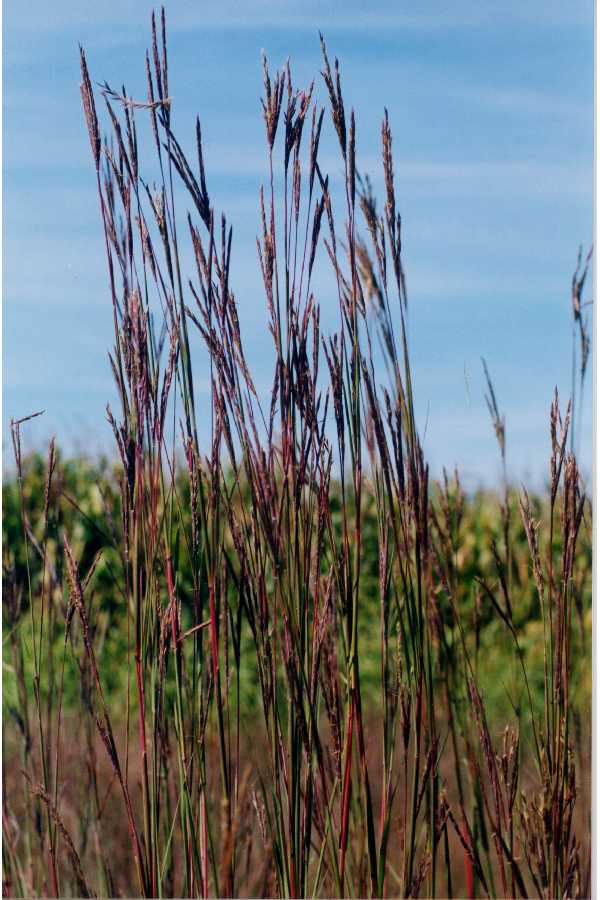
native-plant-search search="big bluestem"
Plant Field Query Cards
This shortcode will generate a group of cards that matches the native plant custom field that you enter. Unlike the native plant search shortcode, this will only search the specific field(s) you enter. If you use more than one field, it will only return plants that match all filters. This is great for showing recommended plants for a specific ecoregion and characteristic.
Currently, only Ecoregion, Wildlife Benefit, Water, and Light can be filtered. For more filter options, please contact the webmaster to request them.
native-plant-custom-query ecoregion="search term" wildlife="search term" water="search term" light="search term"
Examples
native-plant-custom-query ecoregion="cross timbers" wildlife="moths"
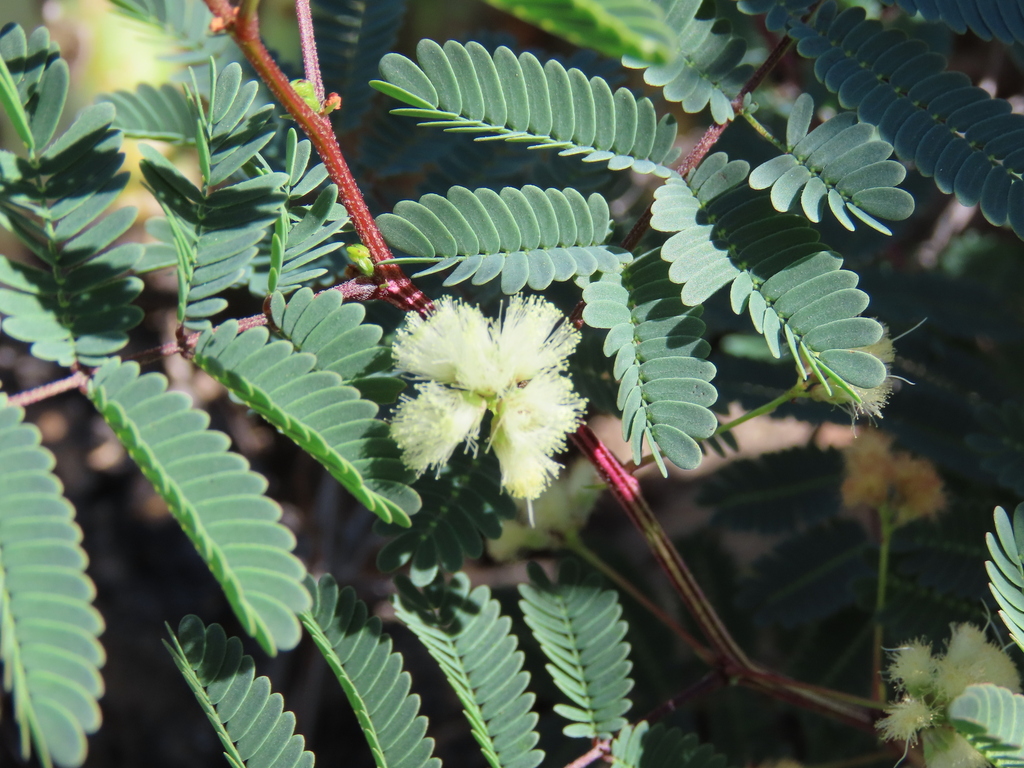
Prairie Acacia
Acacia angustissima
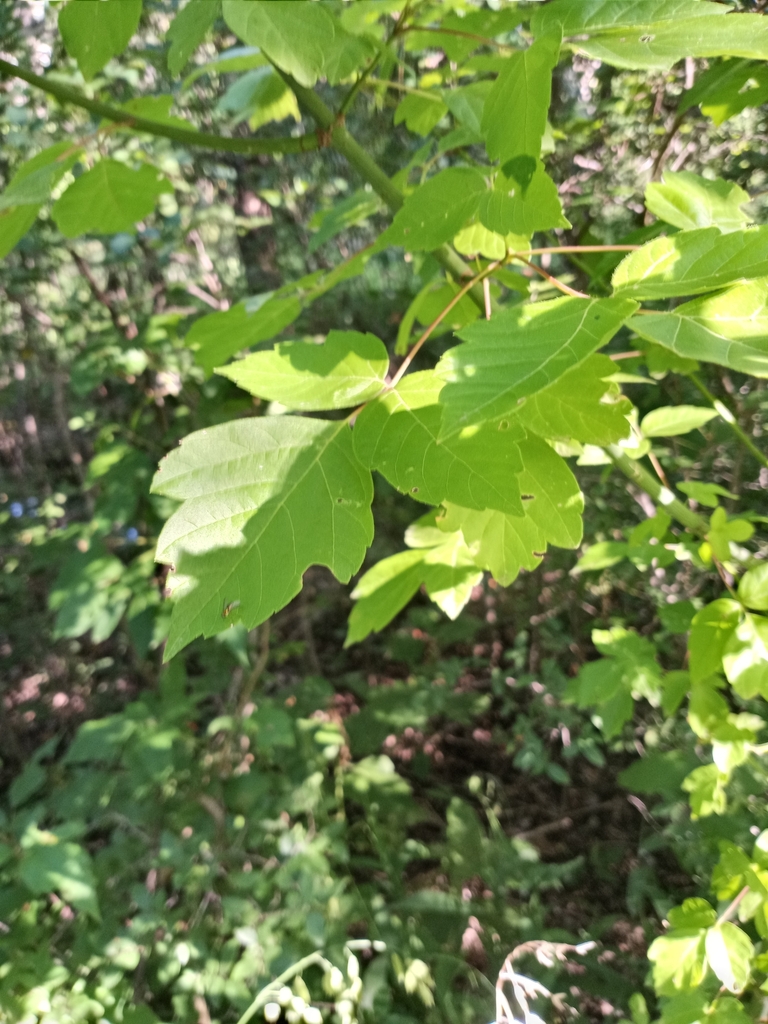
Box Elder
Acer negundo
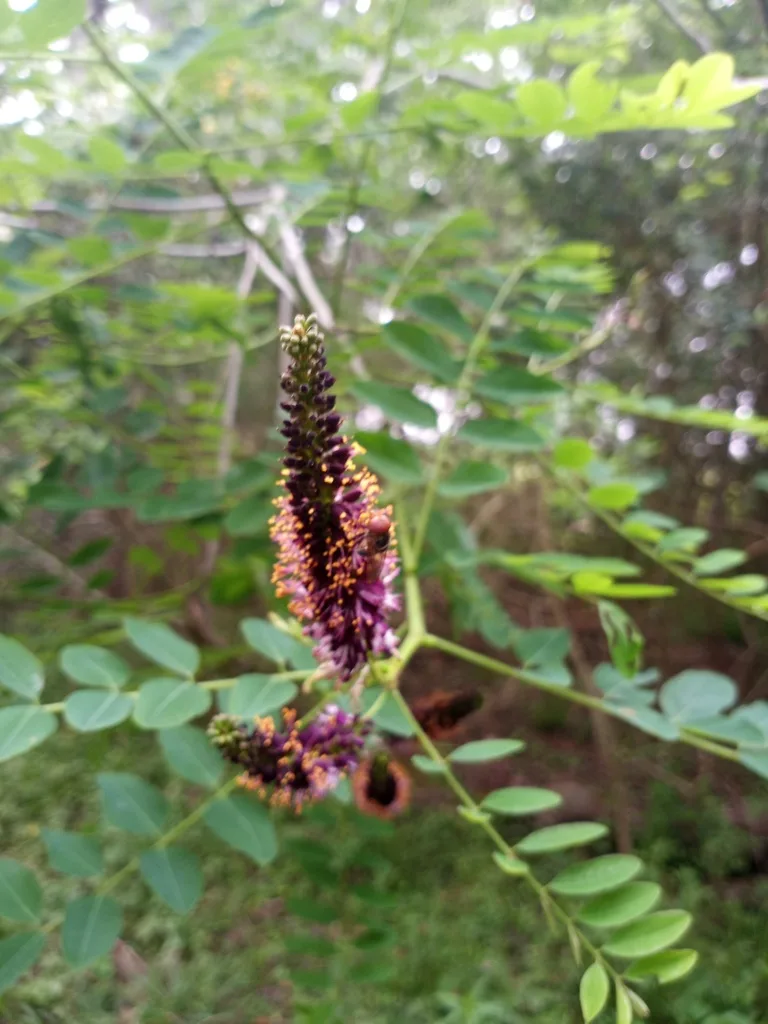
False Indigo Bush
Amorpha fruticosa
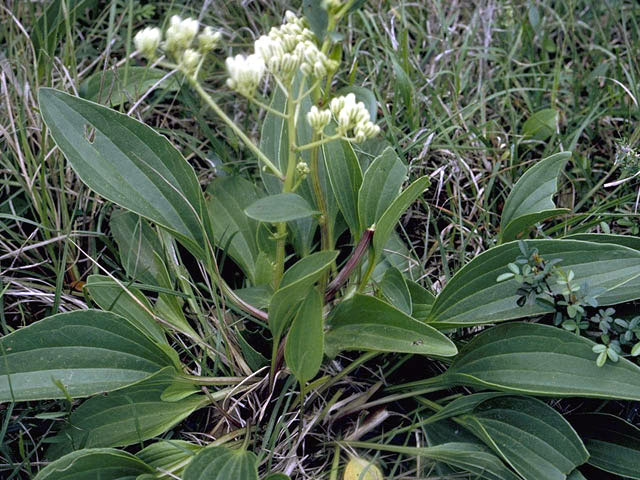
Indian Plantain
Arnoglossum plantagineum
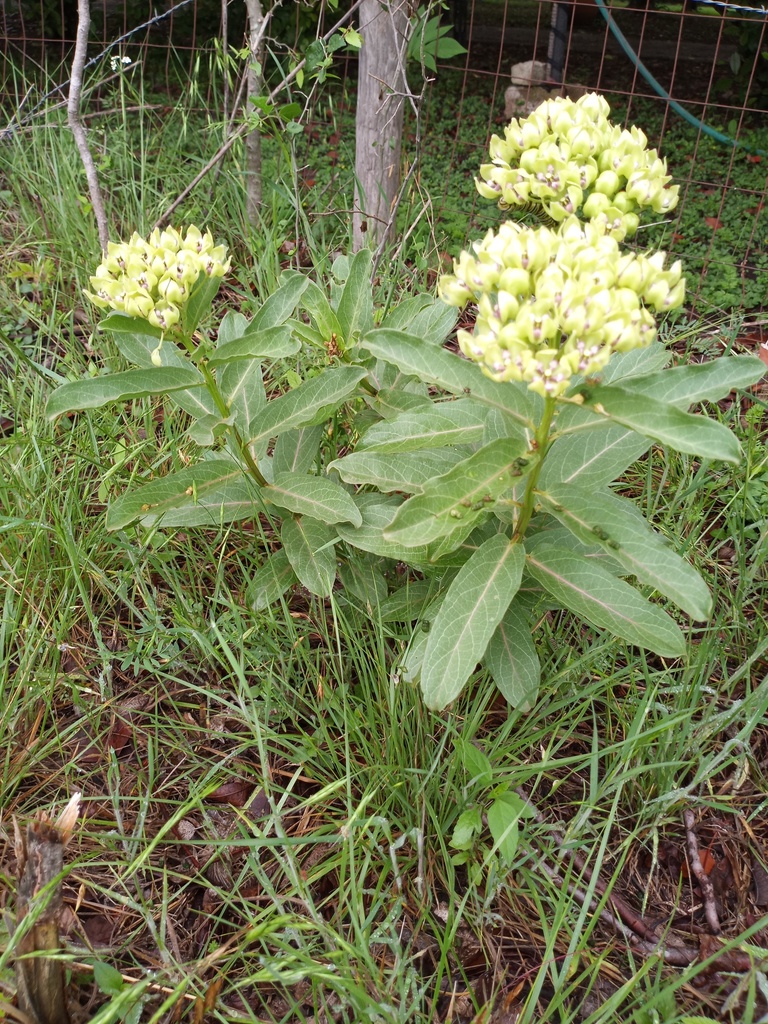
Green Milkweed
Asclepias viridis
Poverty Weed
Baccharis neglecta
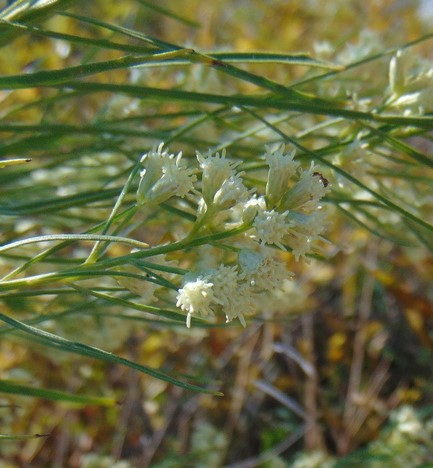
Sideoats Grama
Bouteloua curtipendula
False Boneset
Brickellia eupatorioides
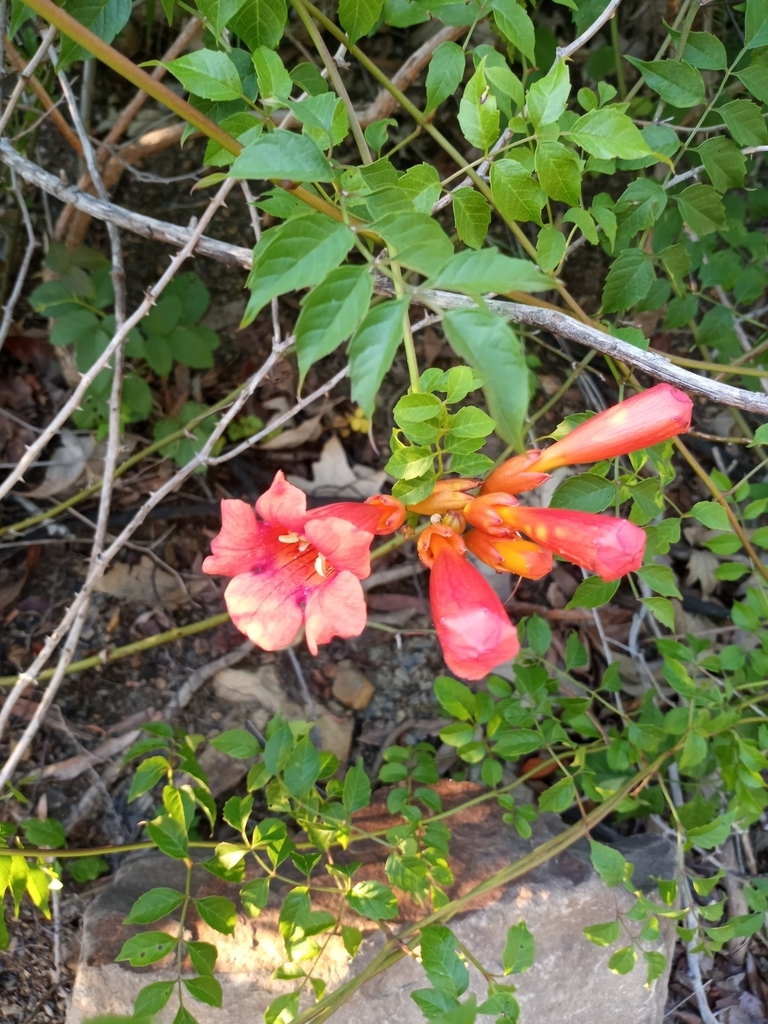
Trumpet Creeper Vine
Campsis radicans
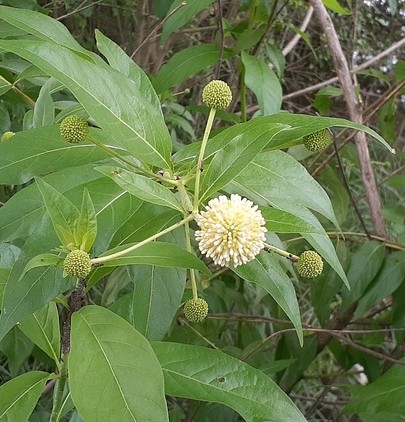
Buttonbush
Cephalanthus occidentalis
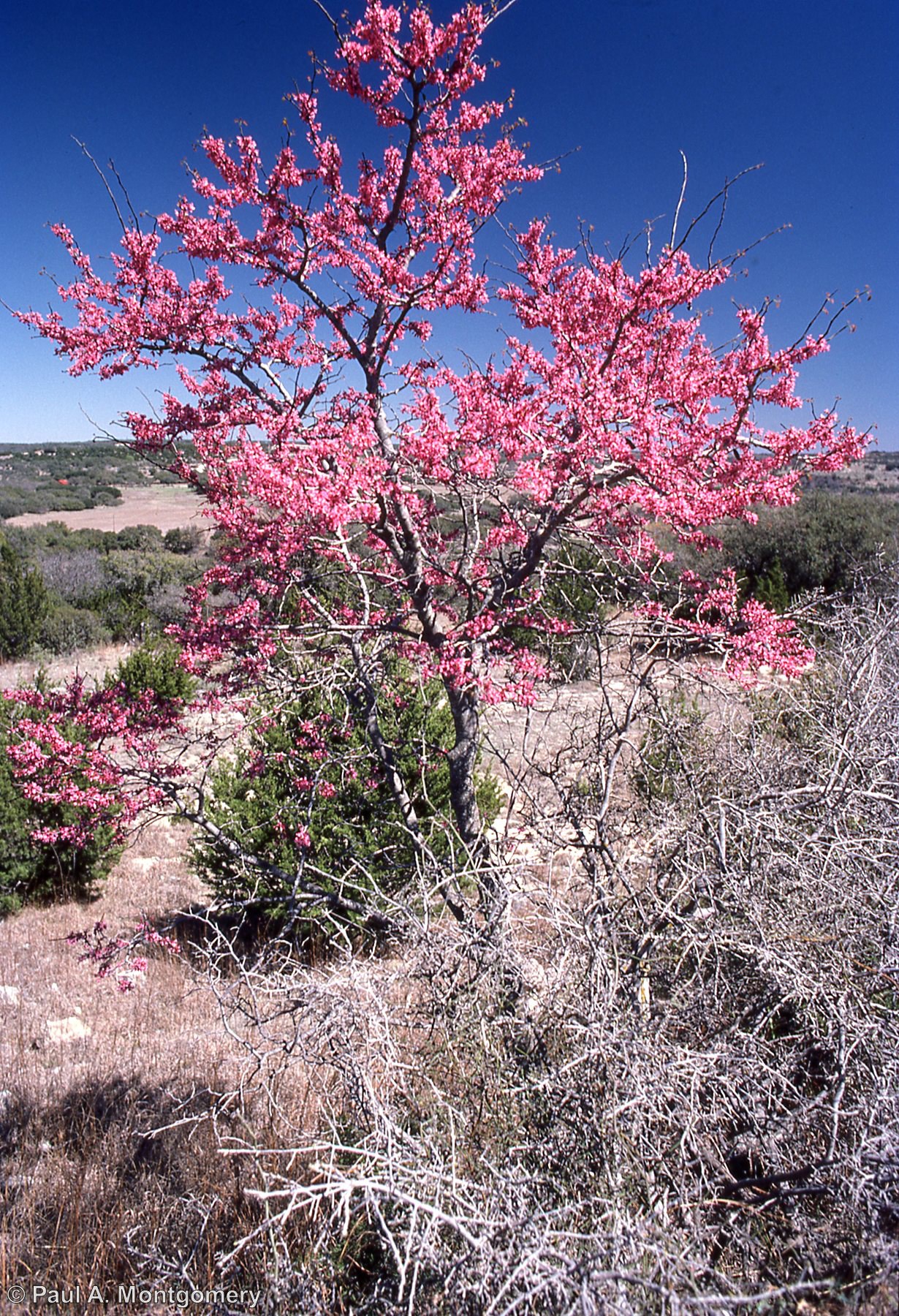
Texas Redbud
Cercis canadensis var. texensis
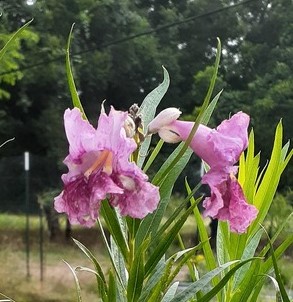
Desert Willow
Chilopsis linearis
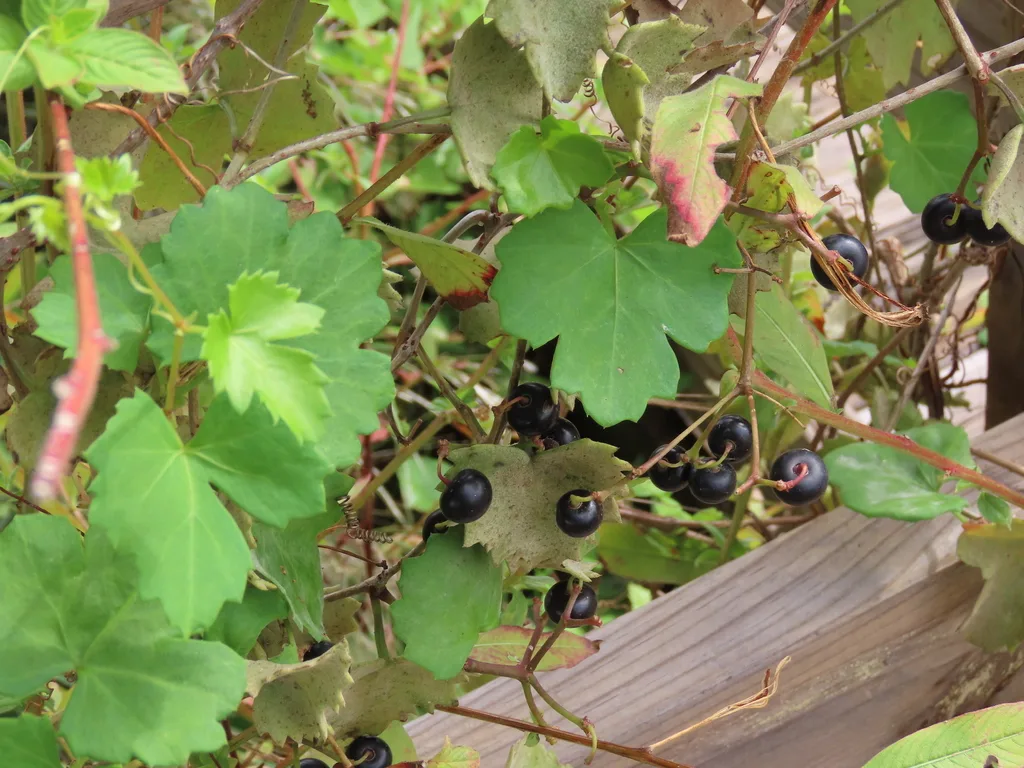
Sorrelvine
Cissus trifoliata
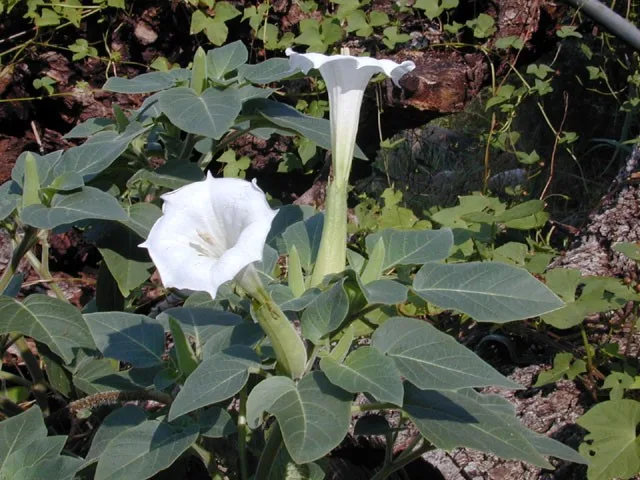
Angel Trumpet
Datura wrightii
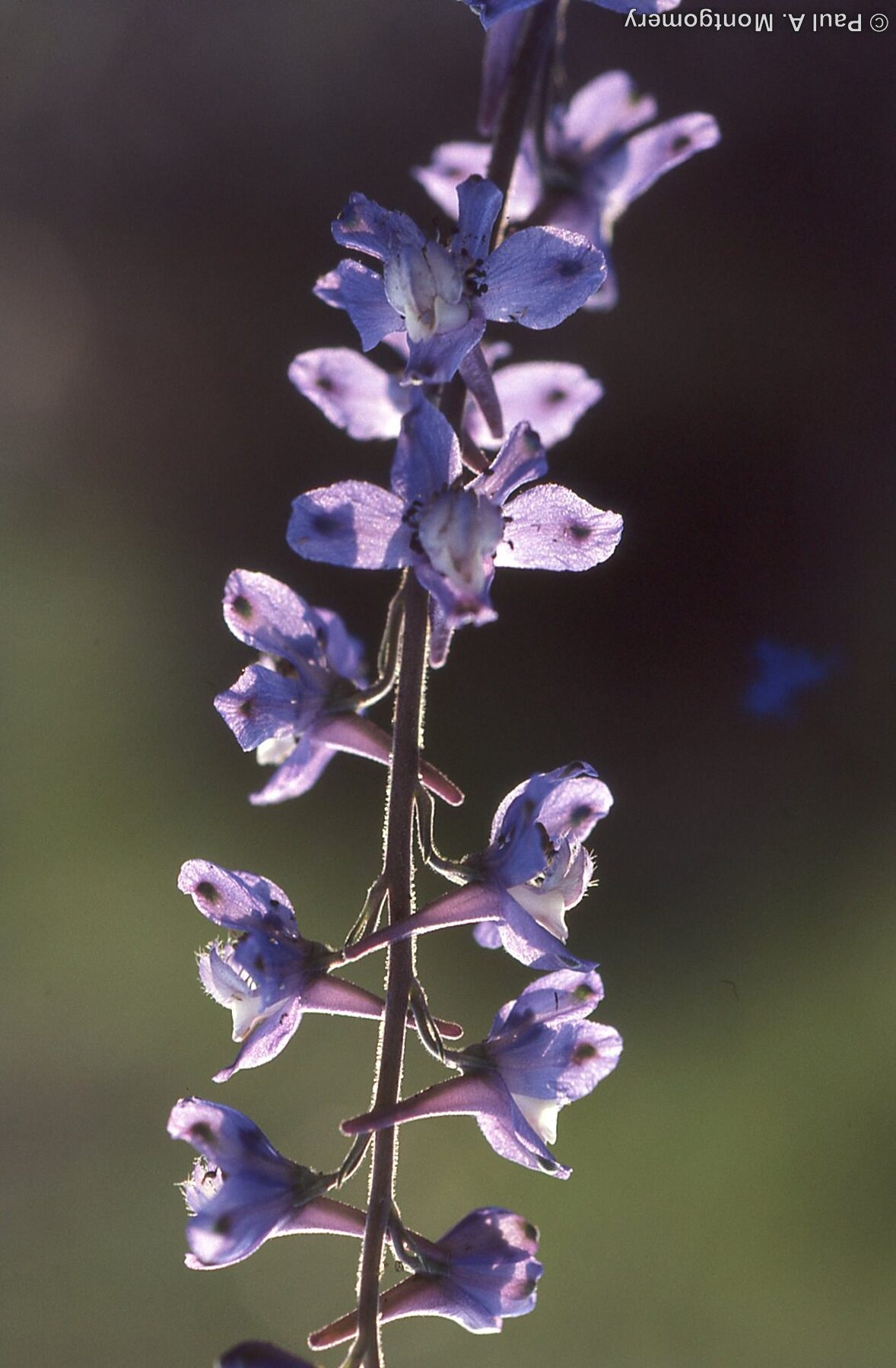
Prairie Larkspur
Delphinium carolinianum
Common Persimmon
Diospyros virginiana
Horsecrippler Cactus
Echinocactus texensis
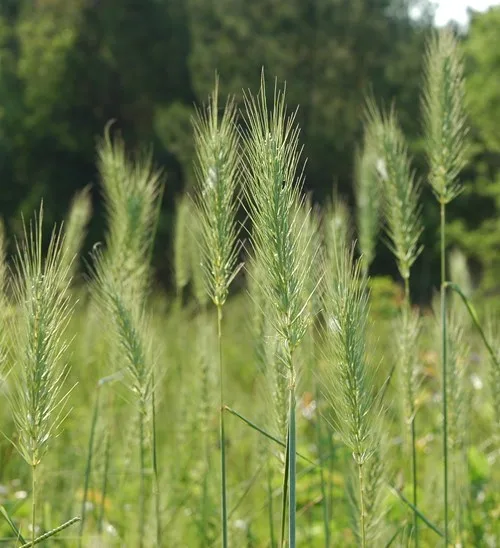
Virginia Wildrye
Elymus virginicus
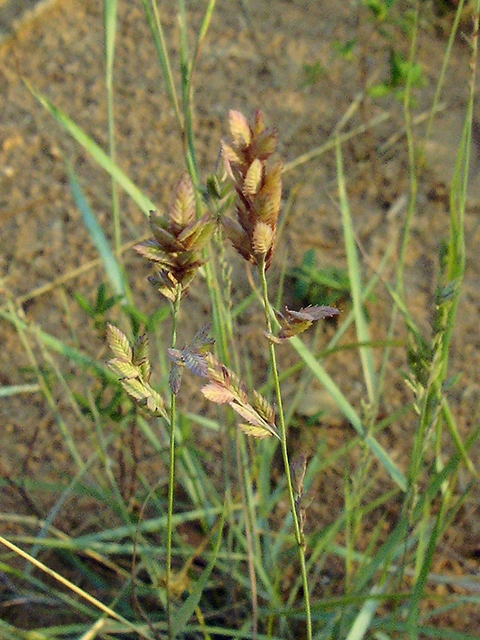
Red Lovegrass
Eragrostis secundiflora
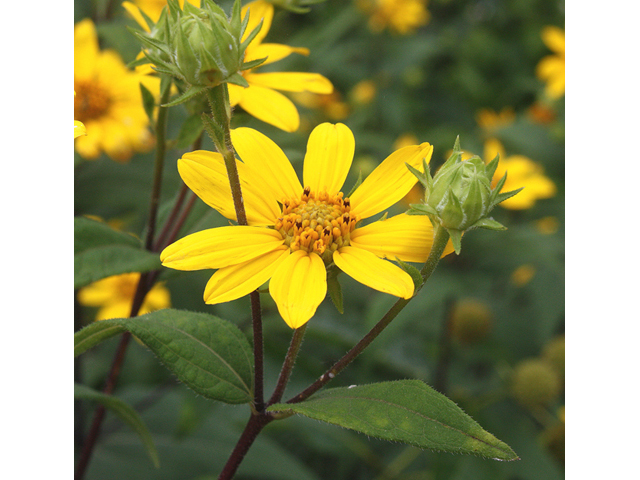
Hairy Sunflower
Helianthus hirsutus
Red Yucca
Hesperaloe parviflora
Possumhaw Holly
Ilex decidua
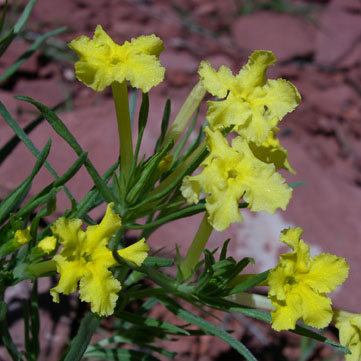
Narrowleaf Puccoon
Lithospermum incisum
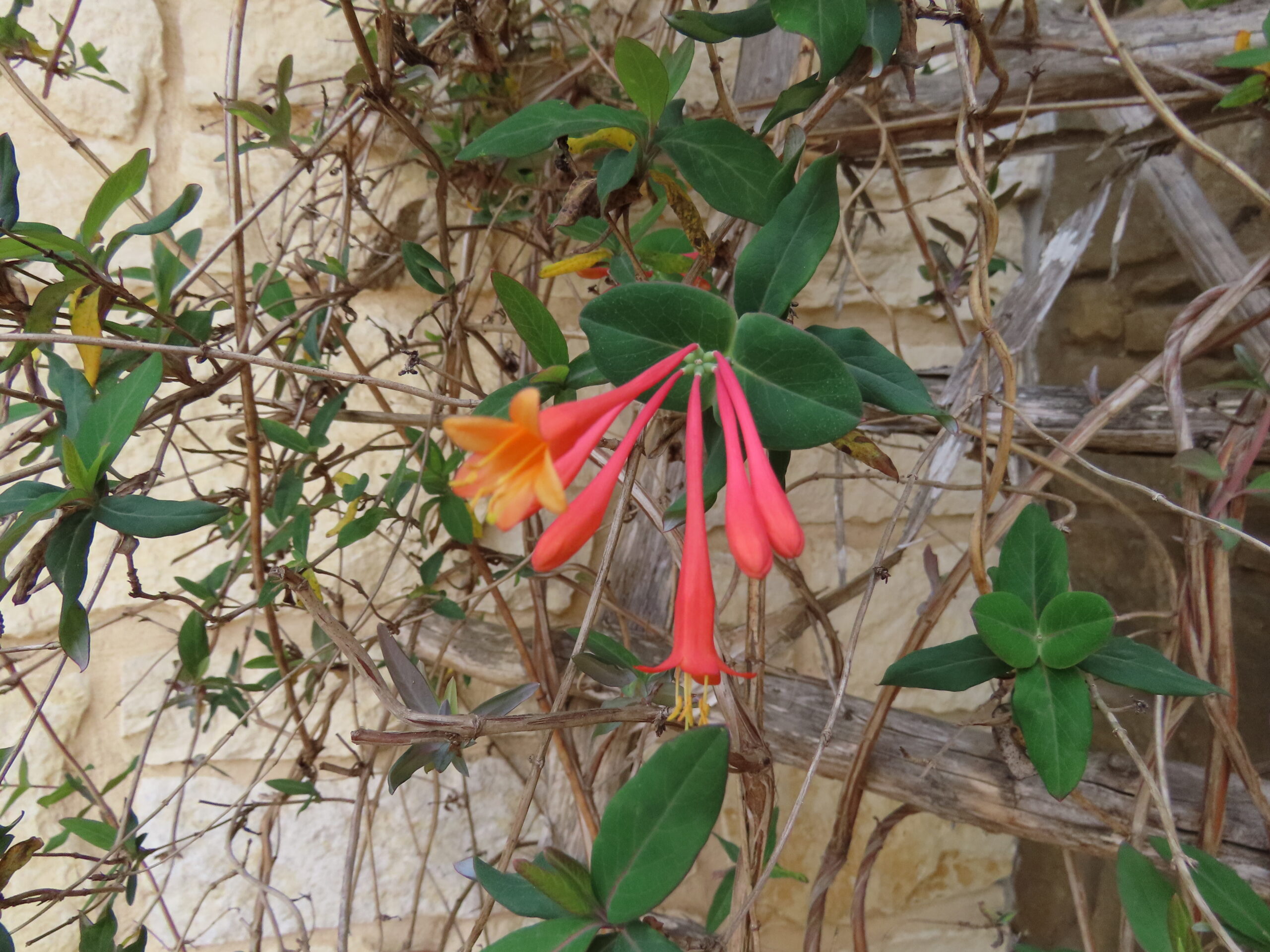
Coral Honeysuckle
Lonicera sempervirens
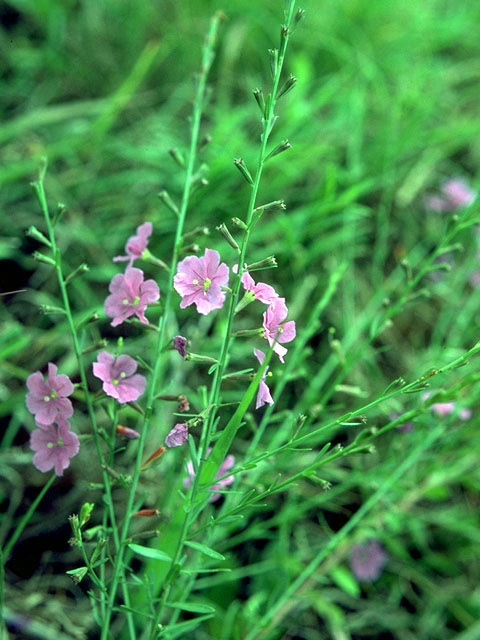
California Loosestrife
Lythrum californicum
White Four O'Clock
Mirabilis albida
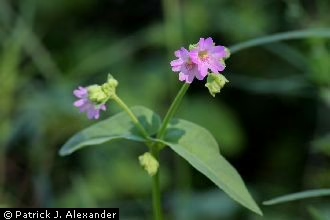
Wild Four O'clock
Mirabilis nyctaginea
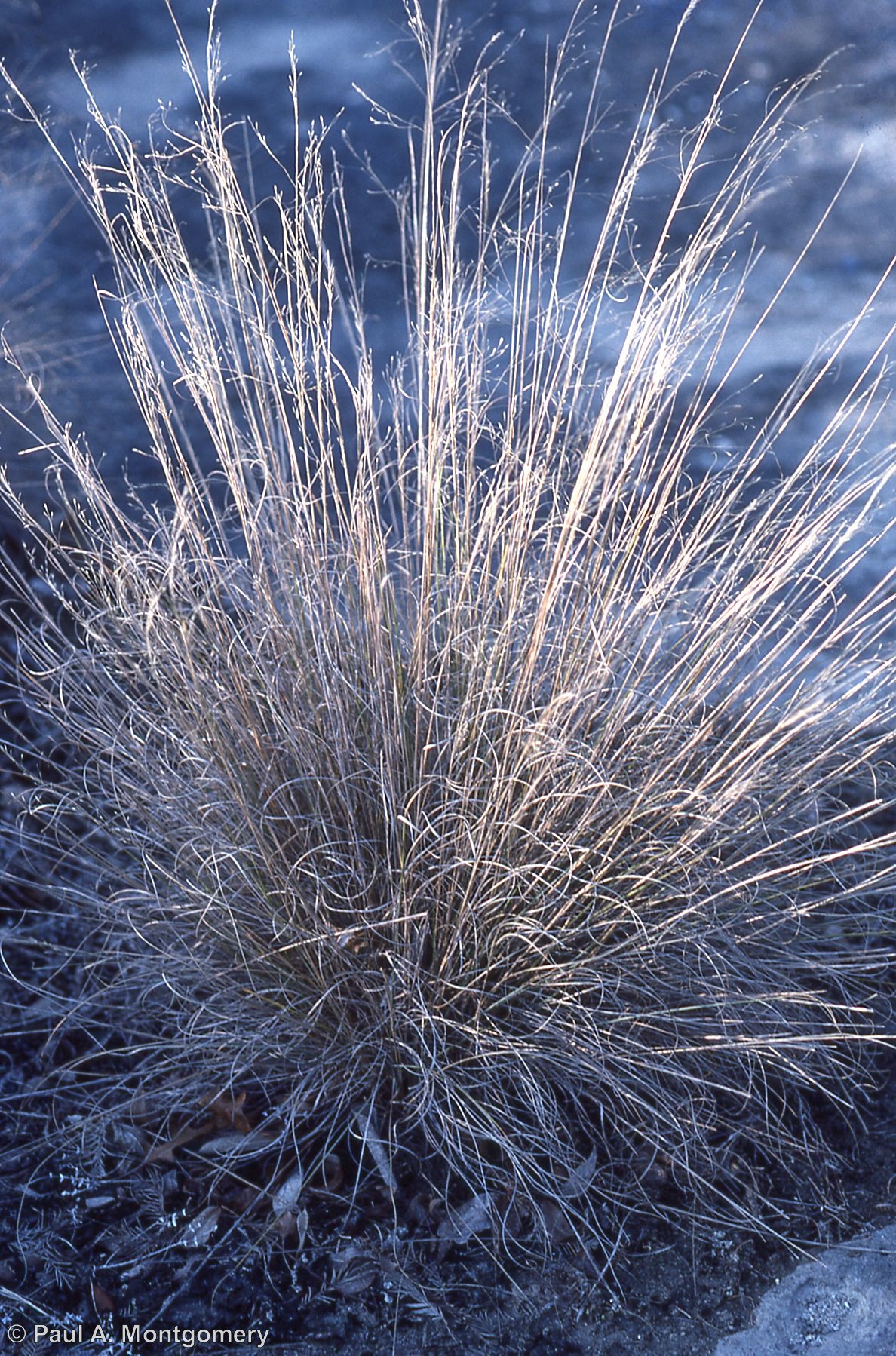
Seep Muhly
Muhlenbergia reverchonii
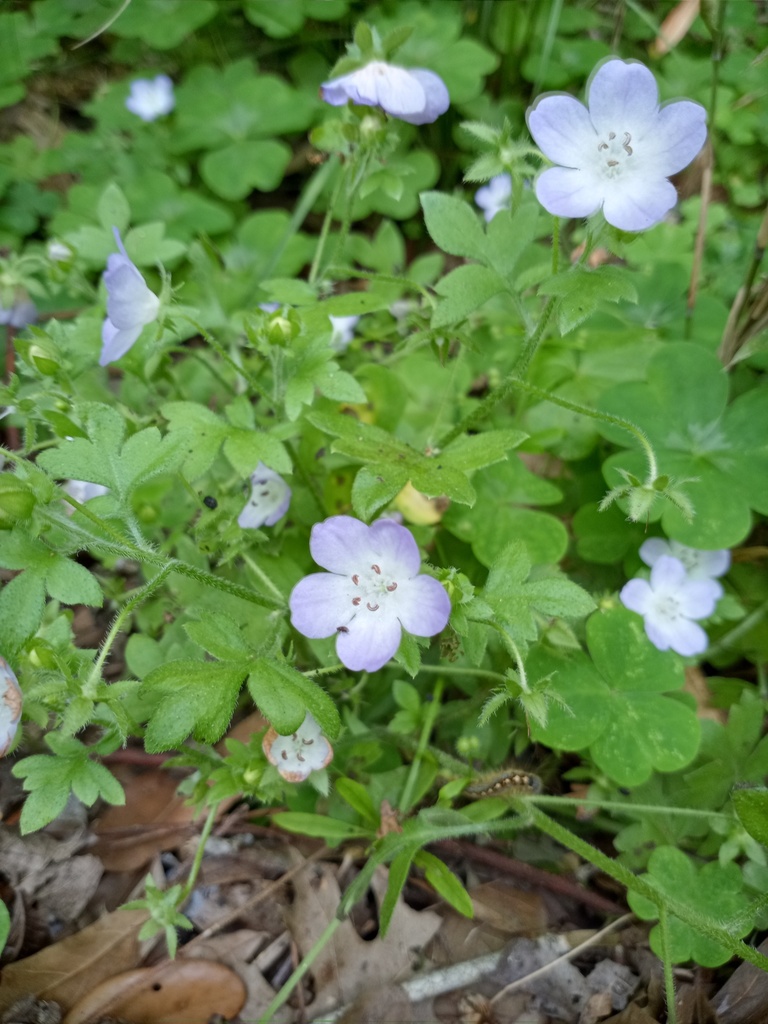
Baby Blue Eyes
Nemophila phacelioides
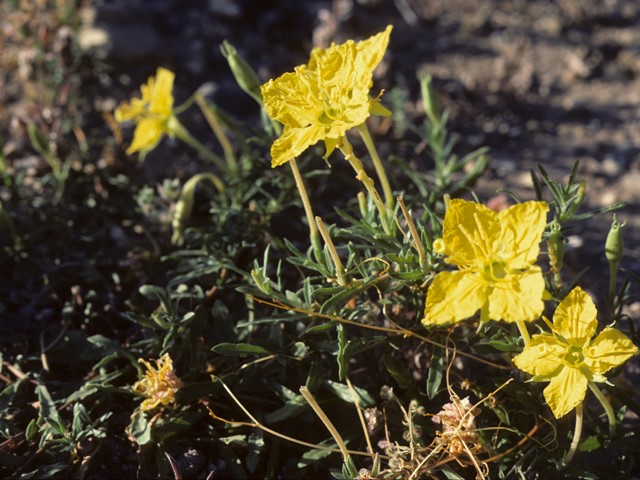
Western Primrose
Oenothera hartwegii
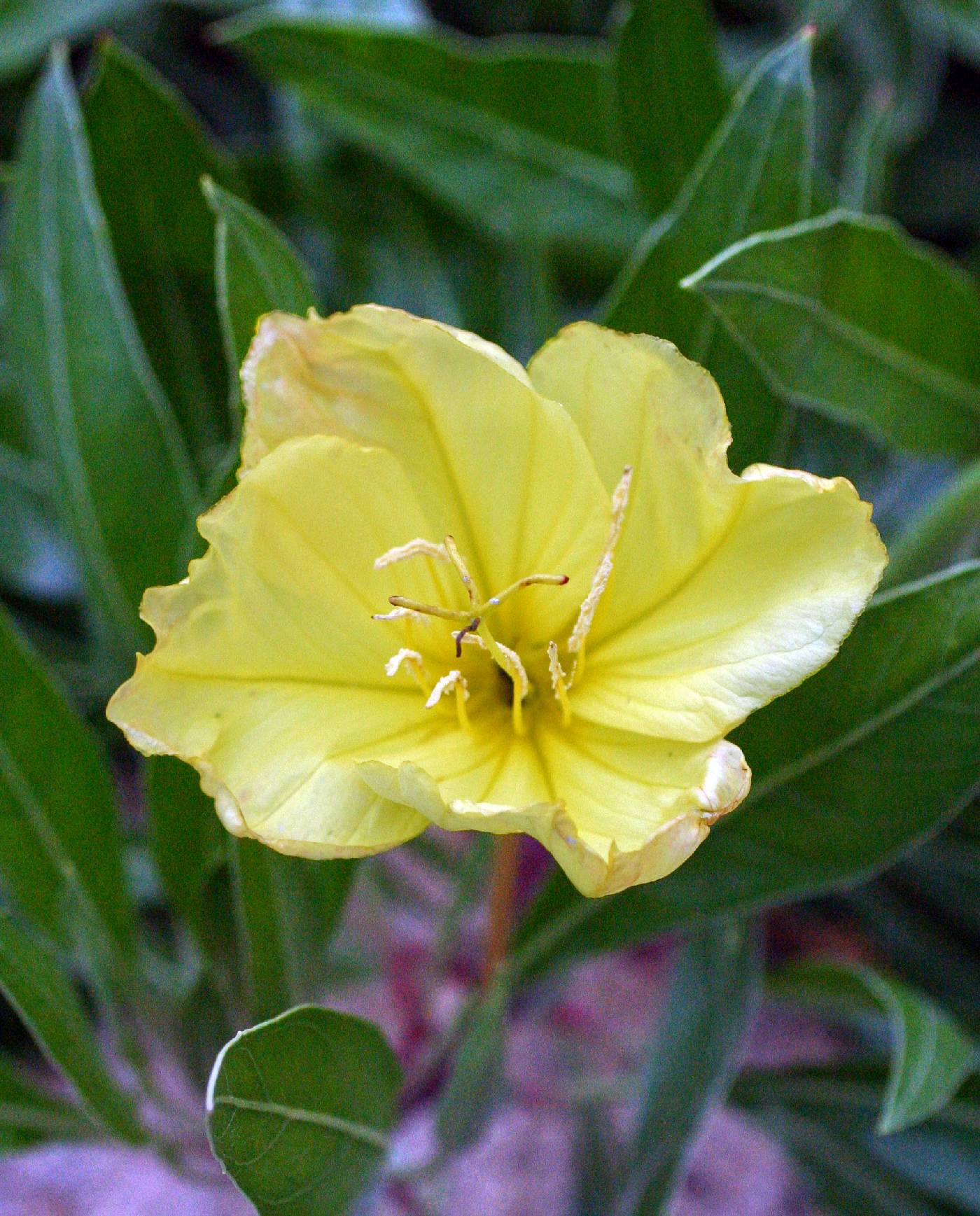
Missouri Primrose
Oenothera macrocarpa
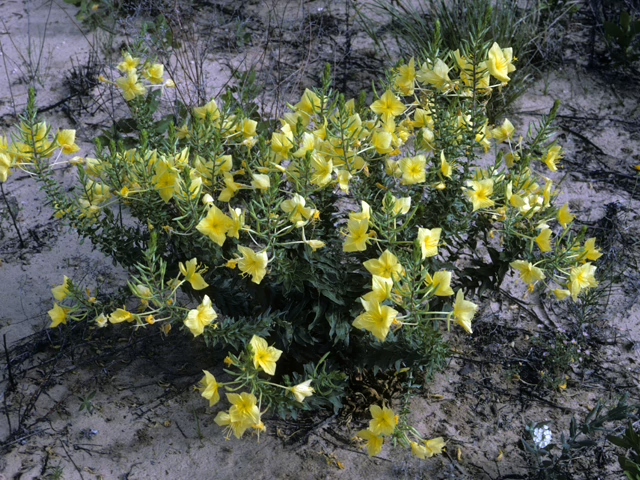
Diamond Petal Primrose
Oenothera rhombipetala
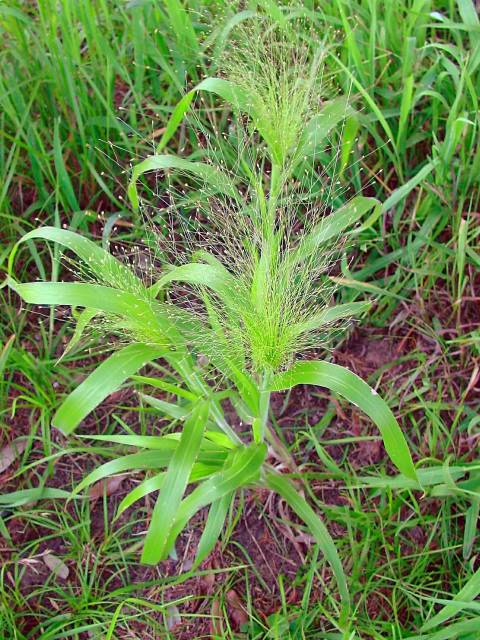
Witchgrass
Panicum capillare
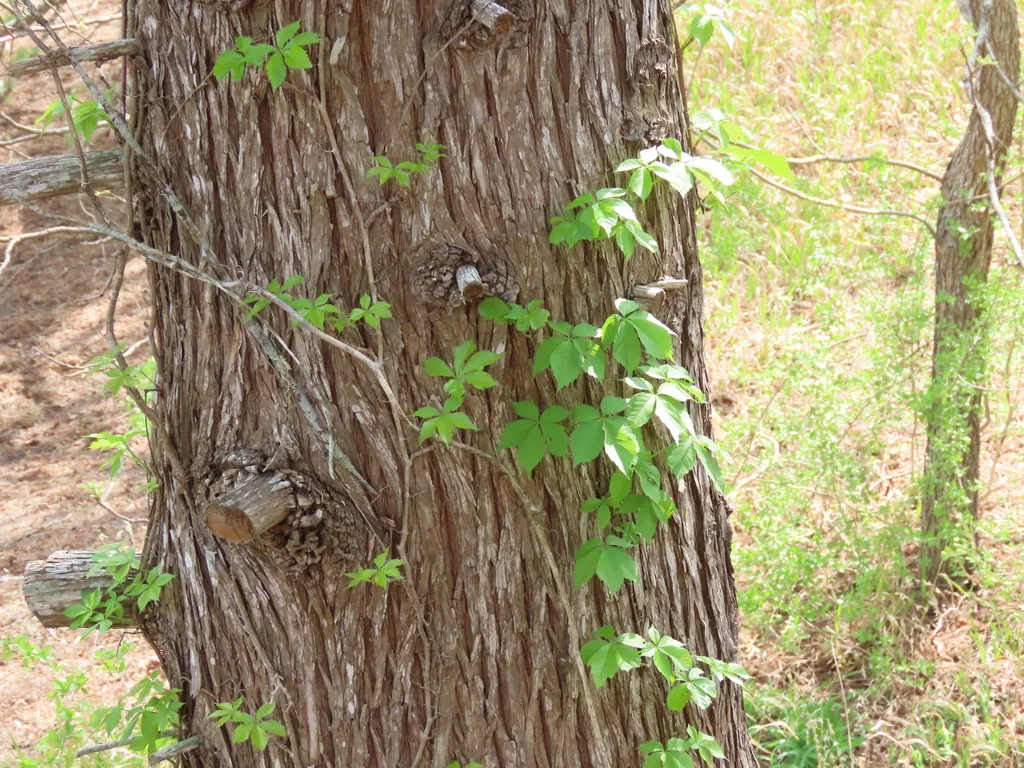
Virginia Creeper
Parthenocissus quinquefolia
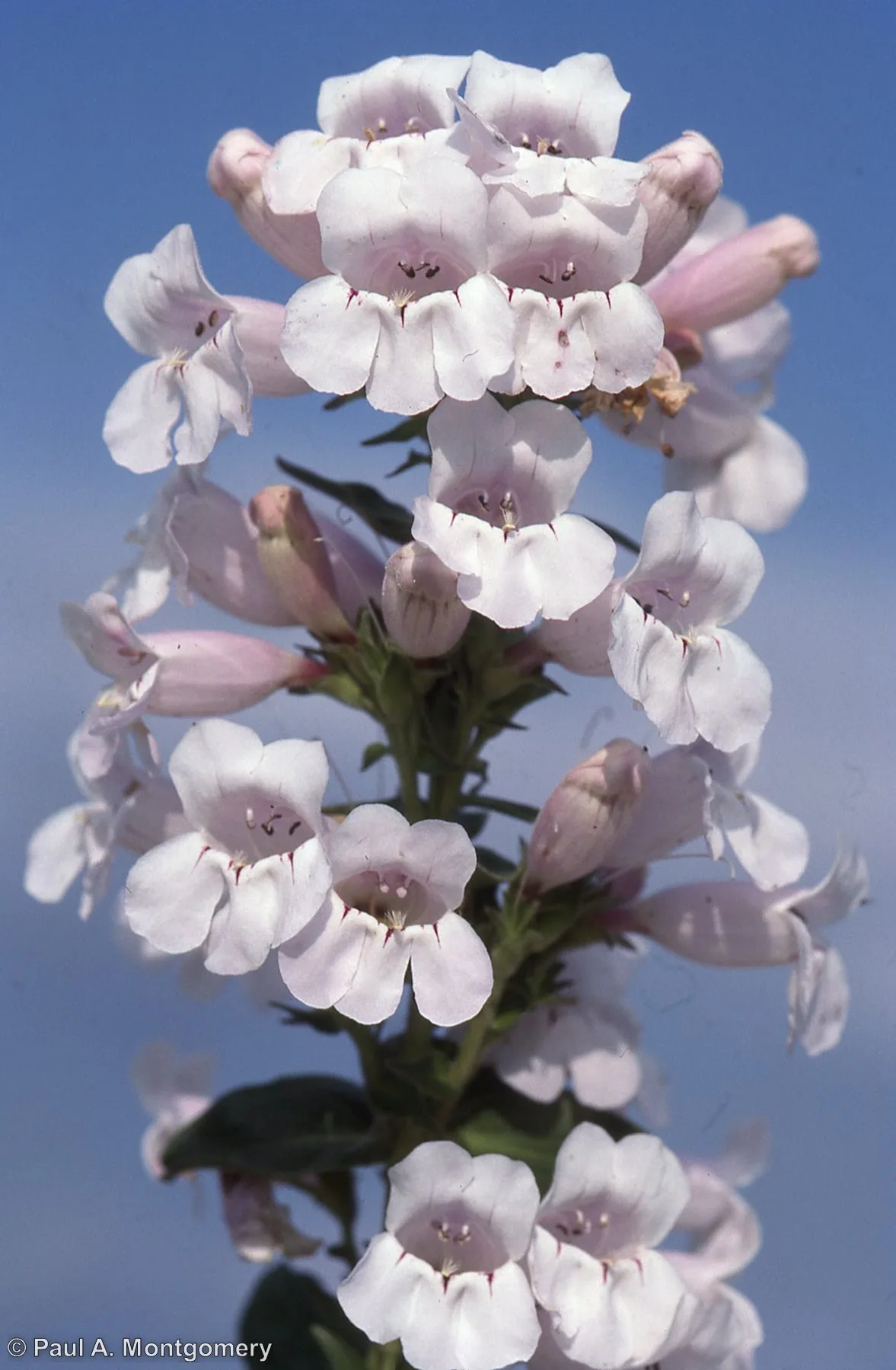
Wild Foxglove
Penstemon cobaea
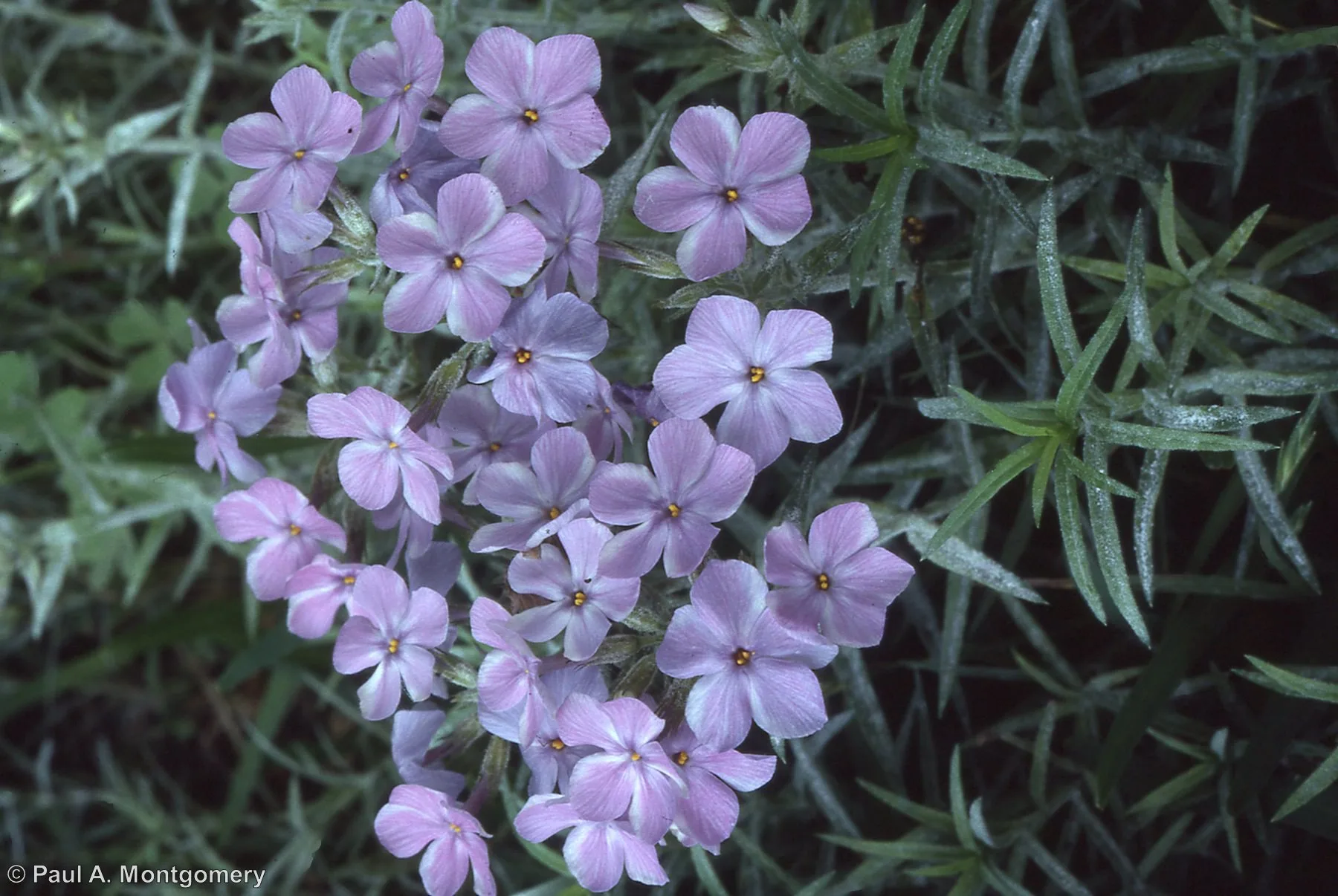
Fragrant Phlox
Phlox pilosa
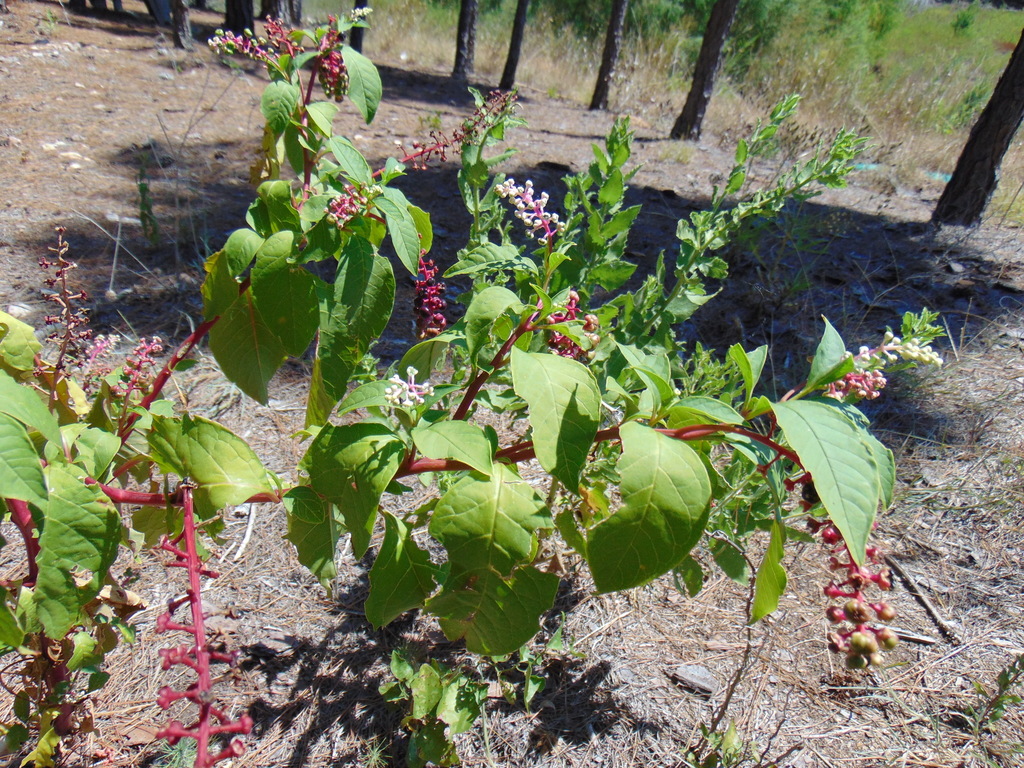
American Pokeweed
Phytolacca americana
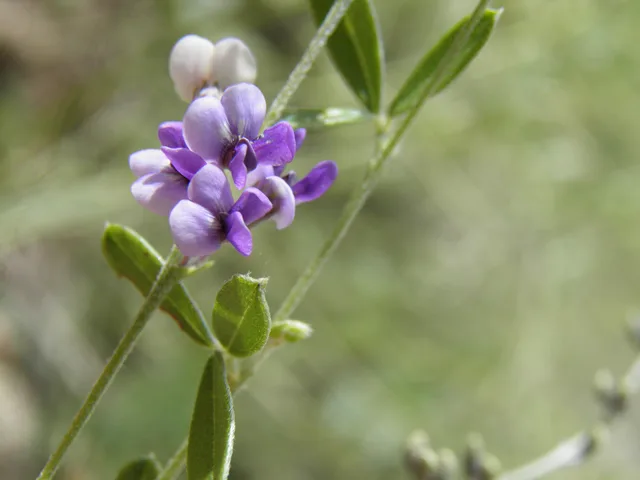
Scurfy Pea
Psoralidium tenuiflorum
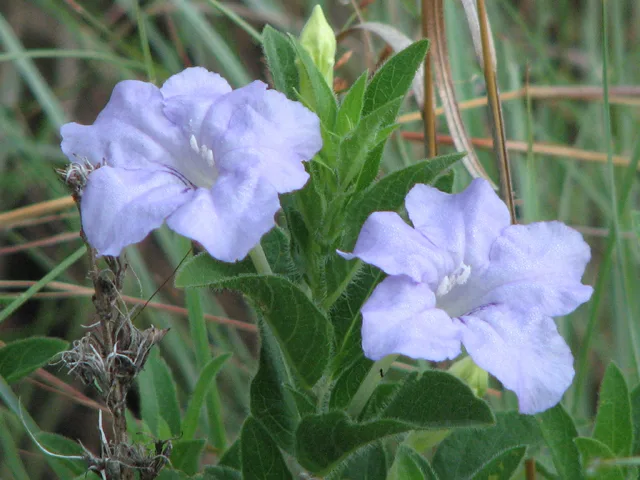
Prairie Petunia
Ruellia humilis
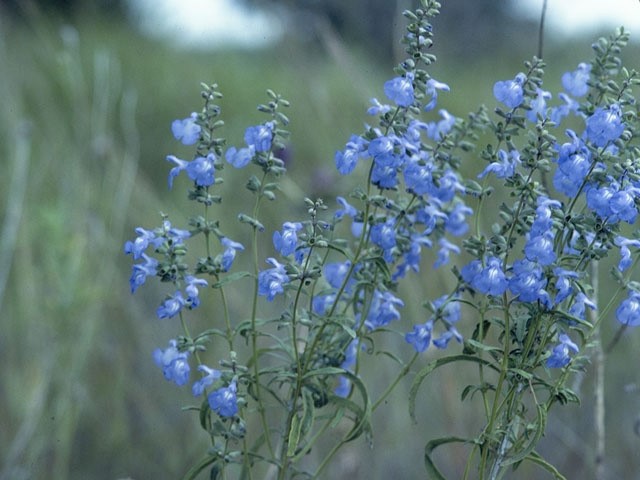
Azure Sage
Salvia azurea
Prairie Goldenrod
Solidago nemoralis
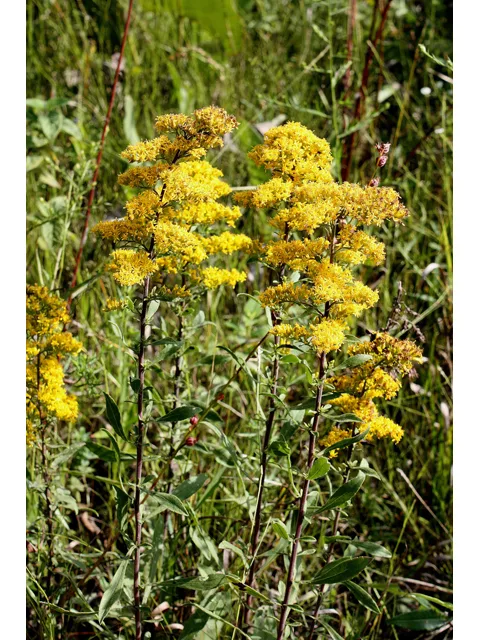
Stiff Goldenrod
Solidago rigida
Heath Aster
Symphyotrichum ericoides
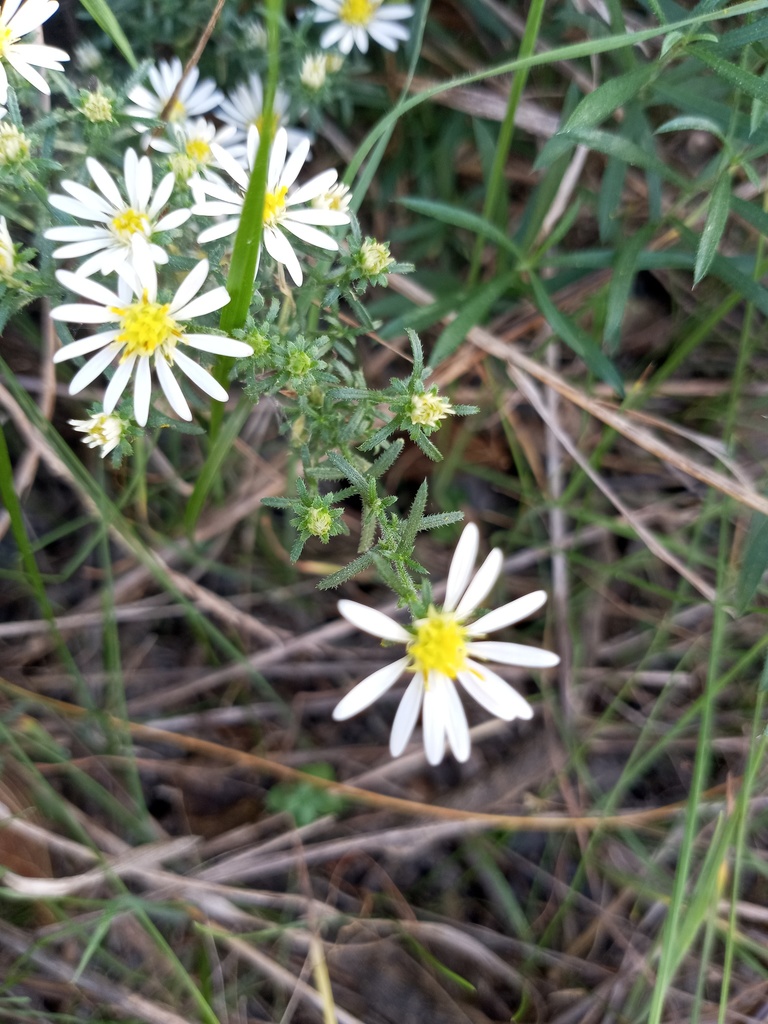
Lanceleaf Aster
Symphyotrichum lanceolatum
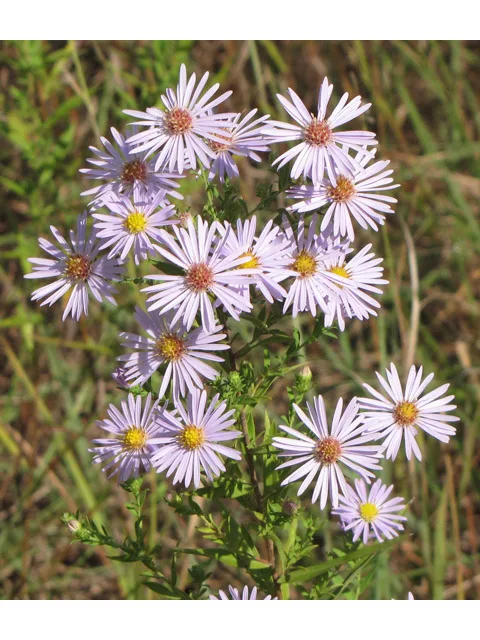
Fall Aster
Symphyotrichum oblongifolium
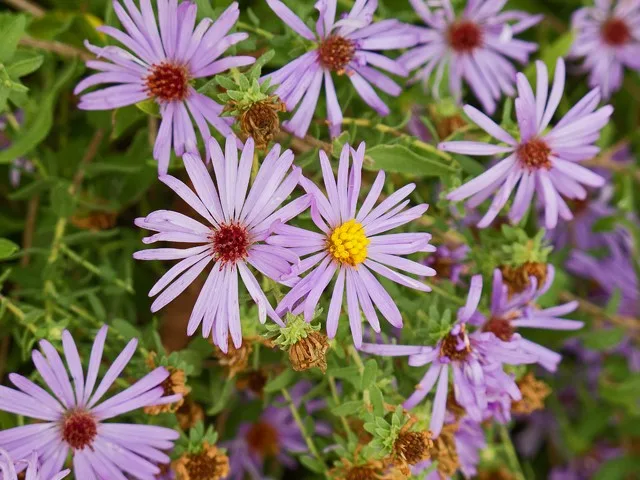
Willowleaf Aster
Symphyotrichum praealtum
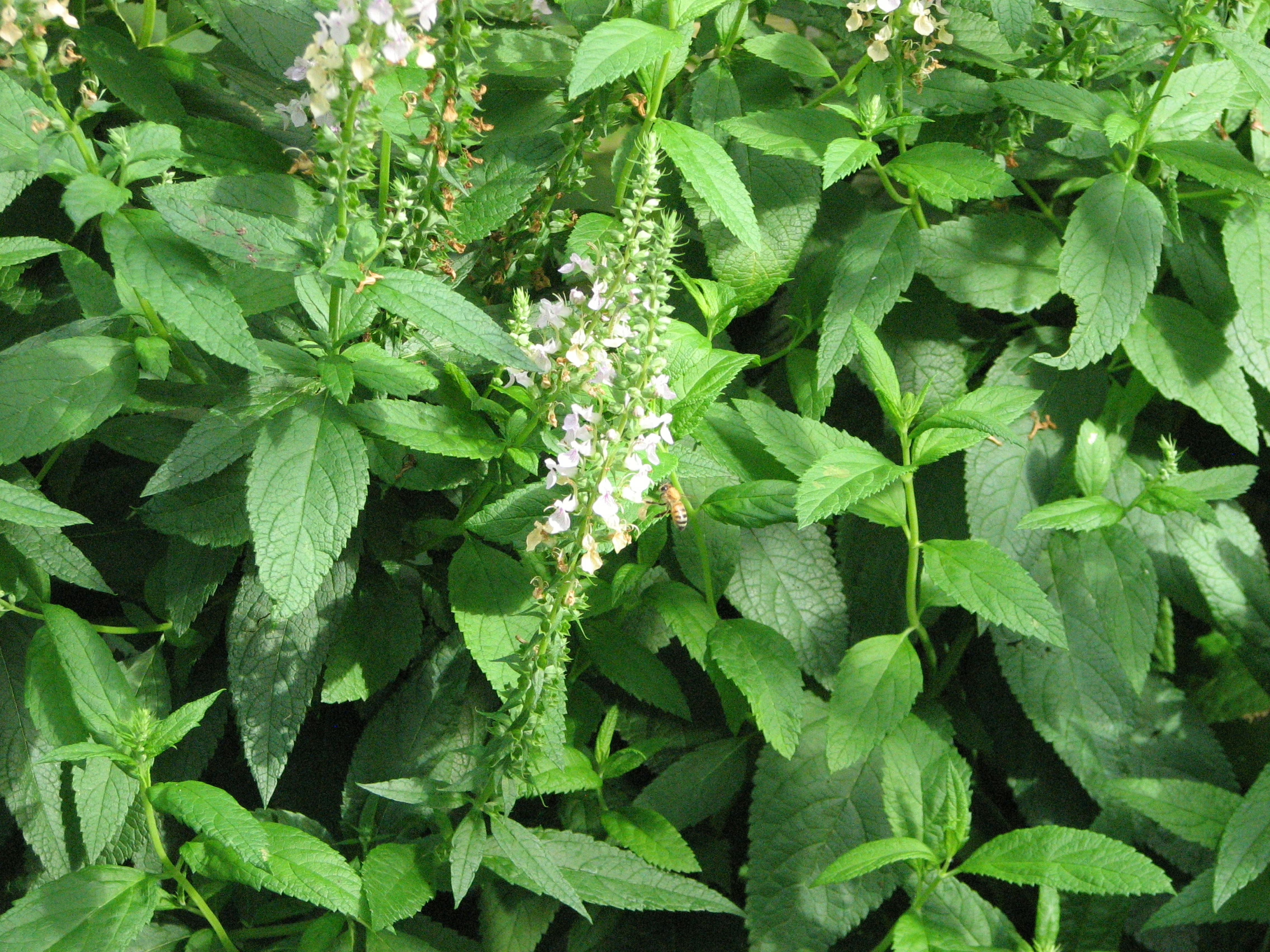
American Germander
Teucrium canadense
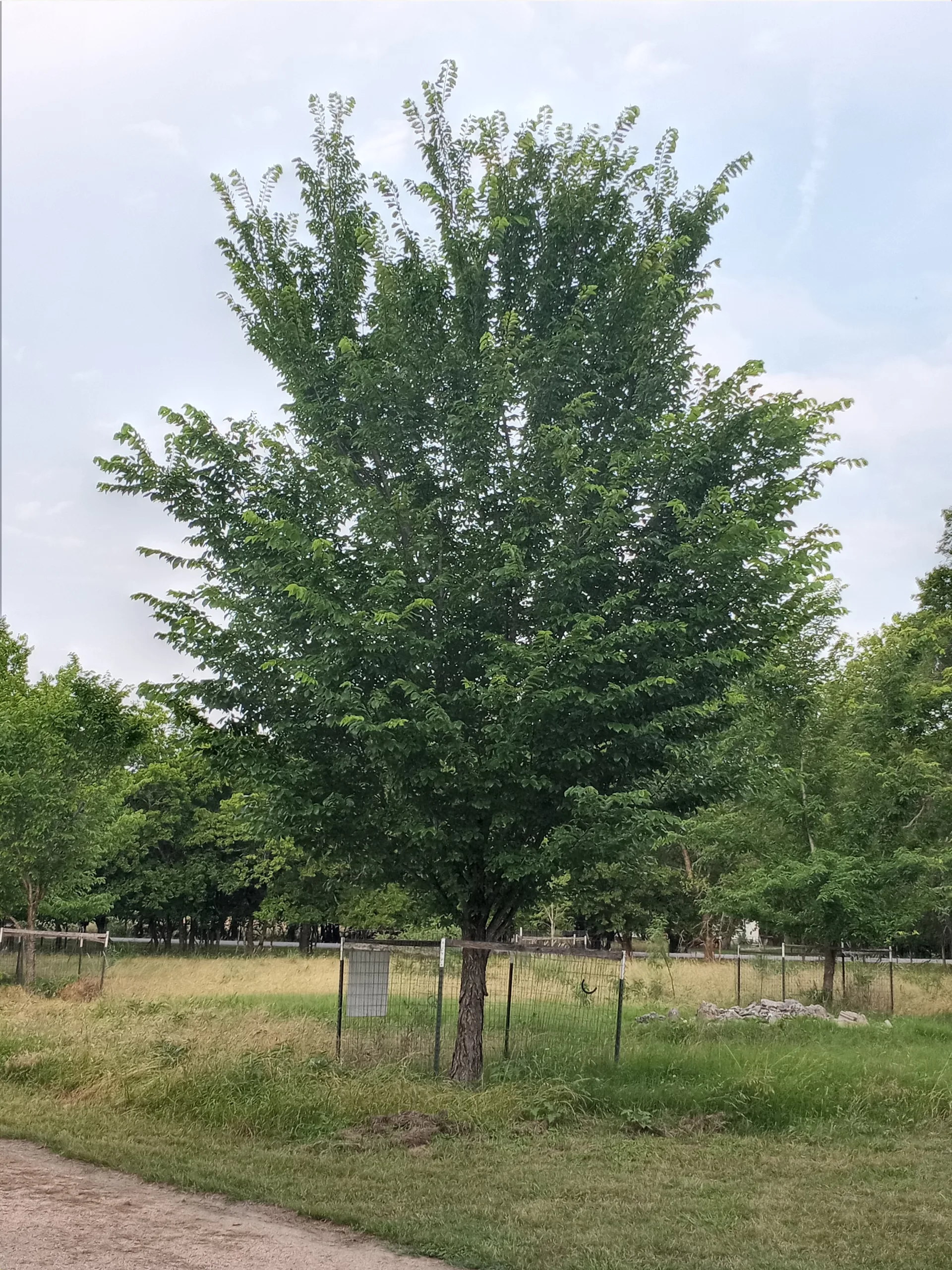
American Elm
Ulmus americana
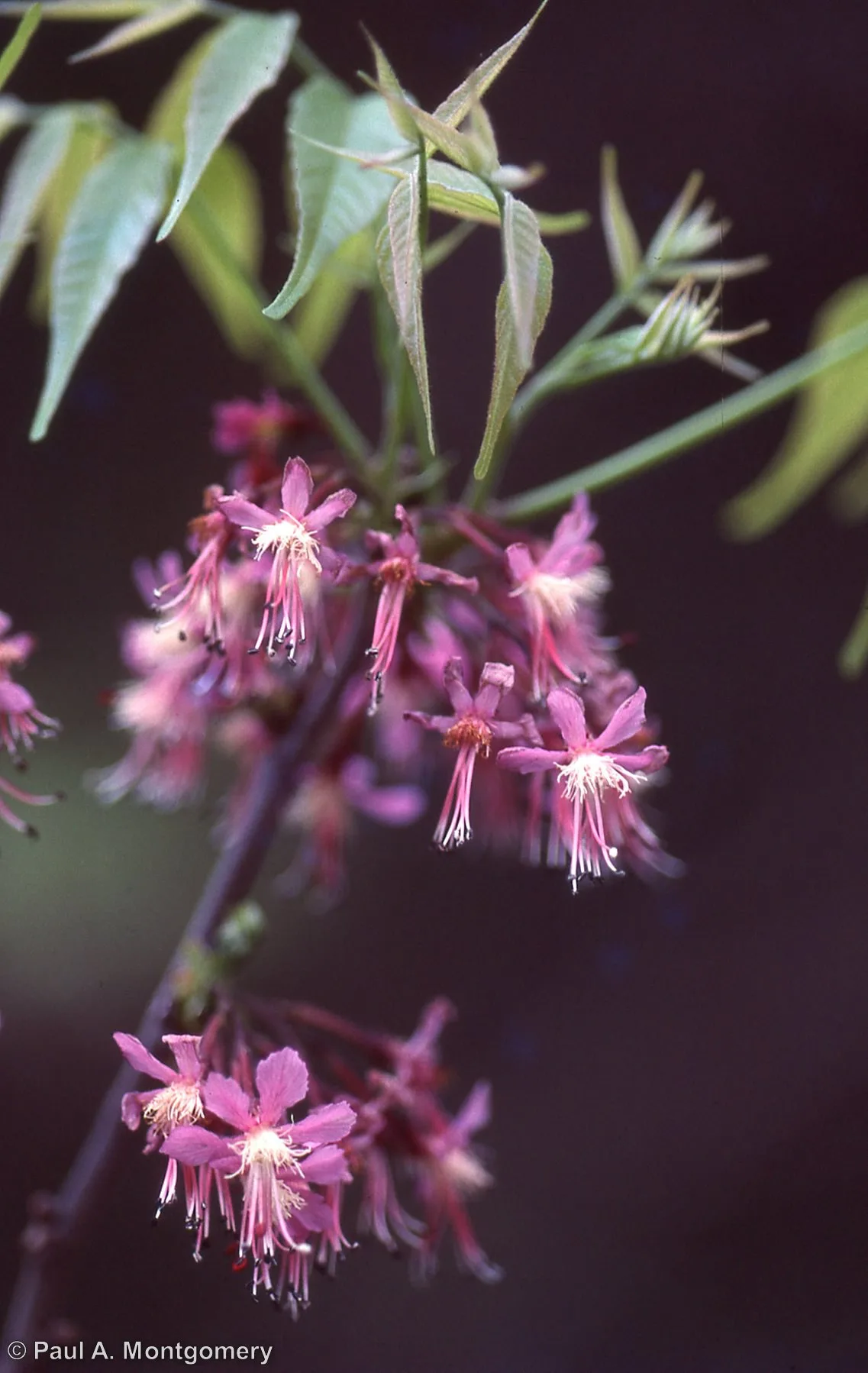
Mexican Buckeye
Ungnadia speciosa
Cowpen Daisy
Verbesina encelioides
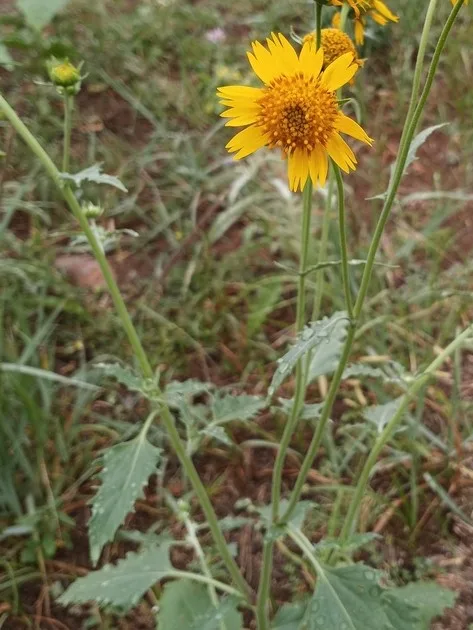
Arkansas Yucca
Yucca arkansana
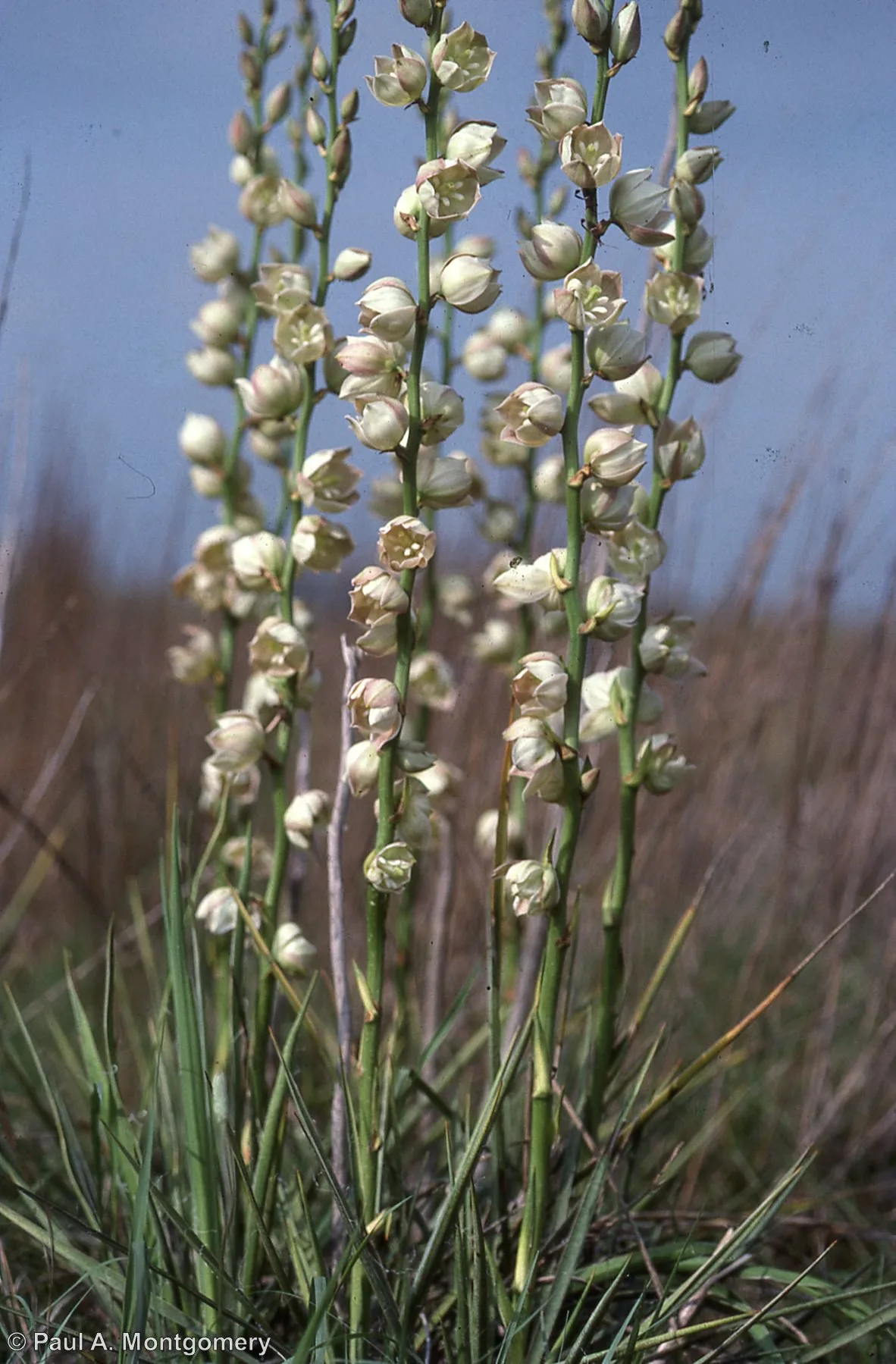
Pale Yucca
Yucca pallida
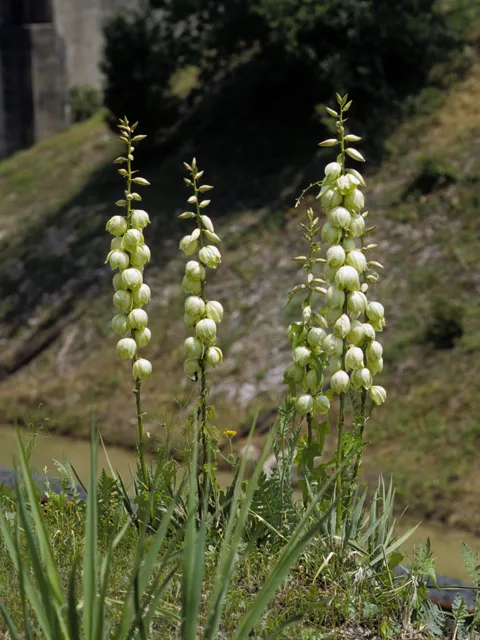
Mountain Pinks
Zeltnera beyrichii
native-plant-custom-query ecoregion='edwards plateau' water='low' light="shade"
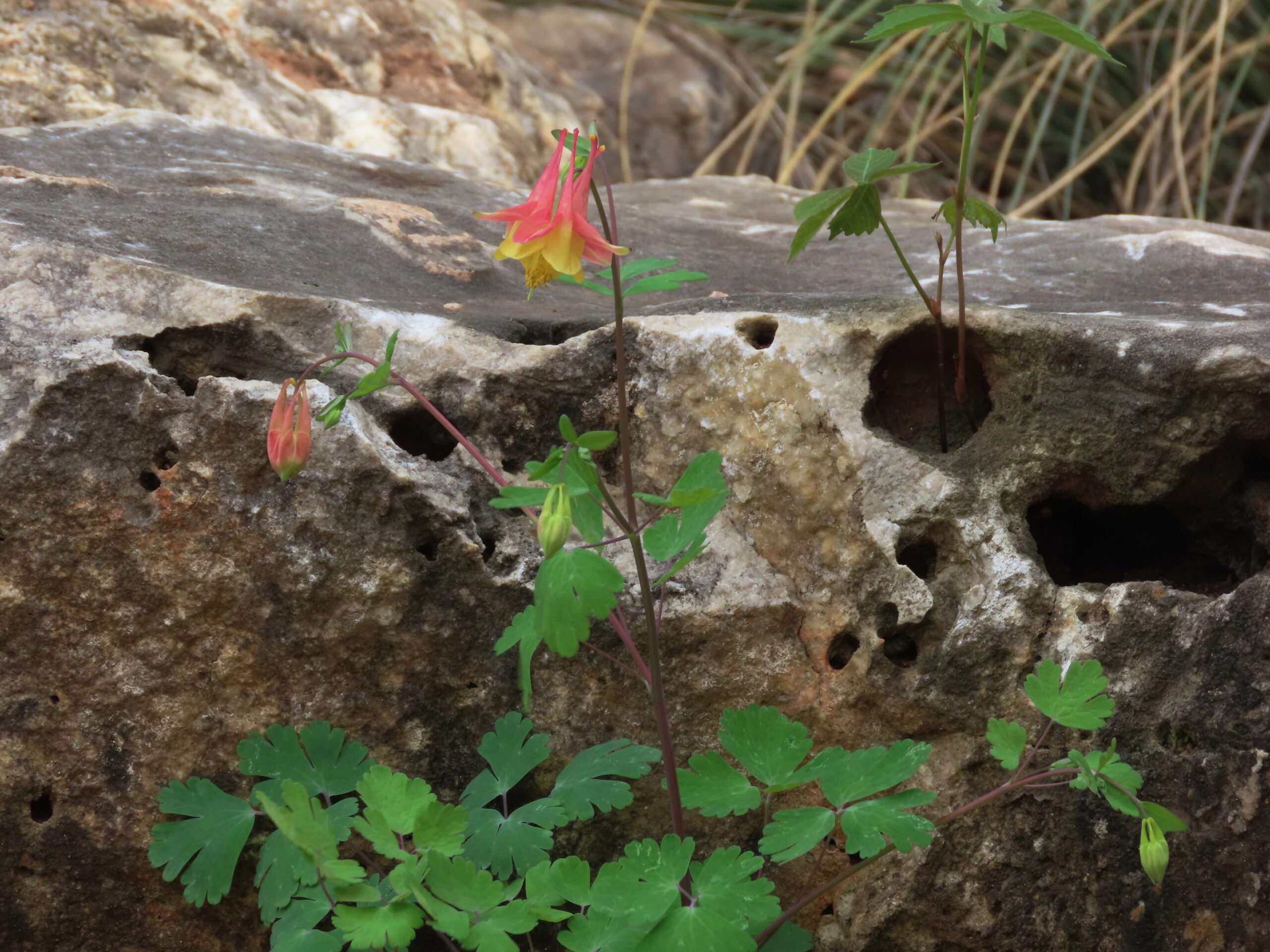
Wild Red Columbine
Aquilegia canadensis
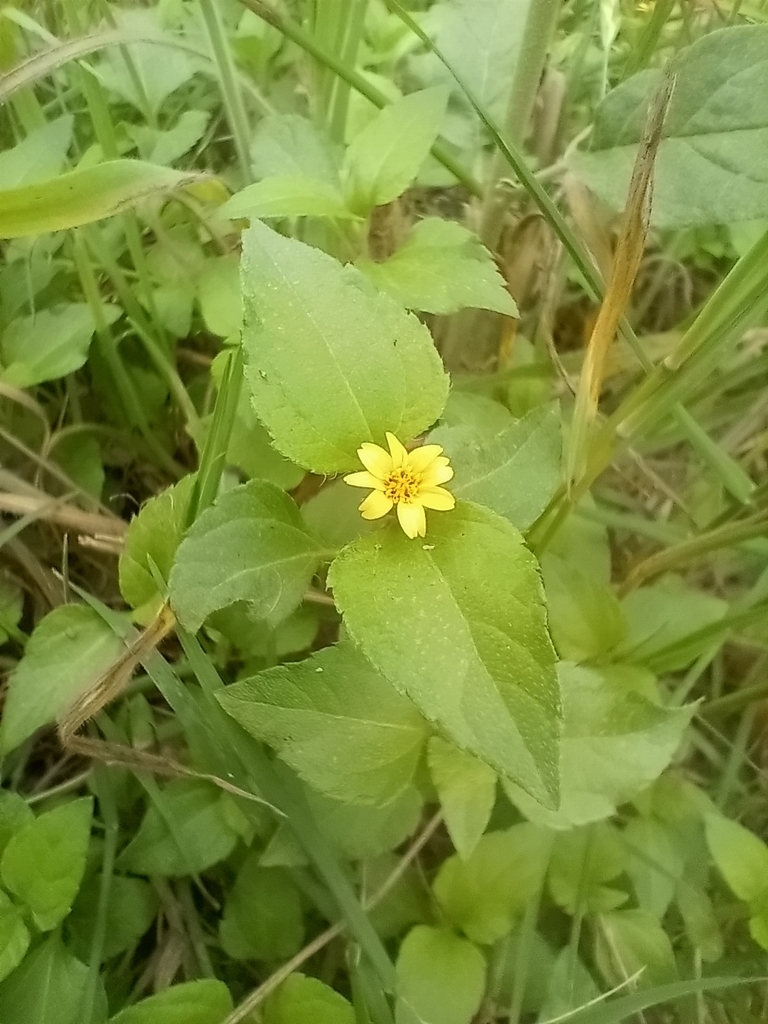
Horseherb
Calyptocarpus vialis
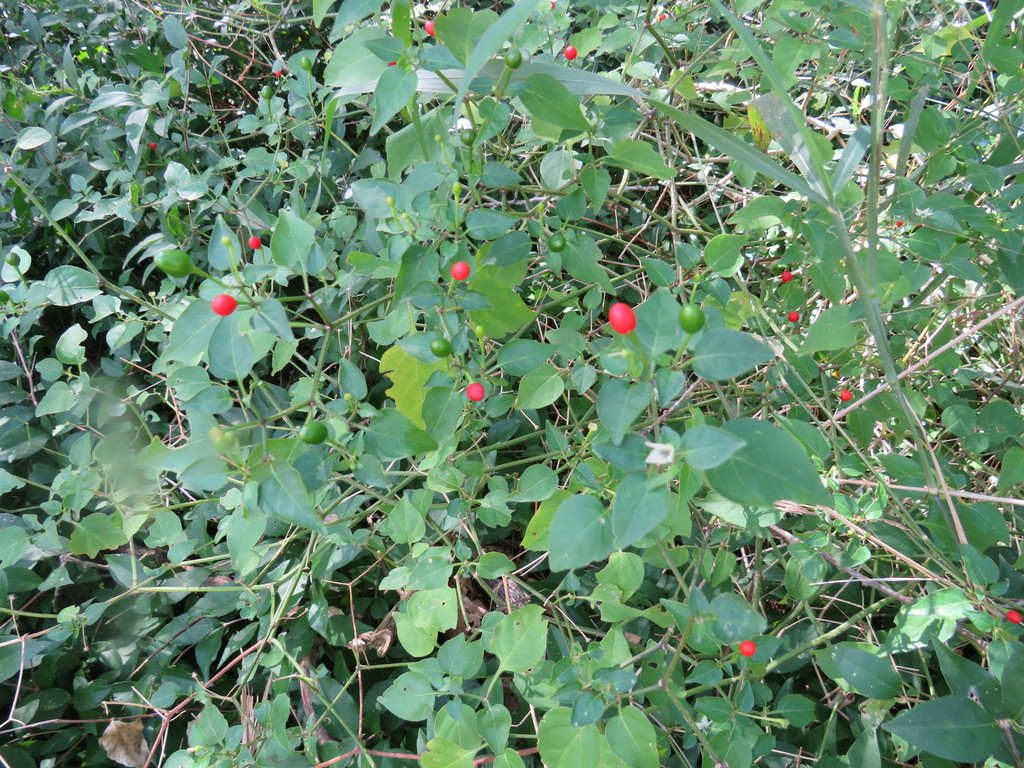
Chile Pequin
Capsicum annuum
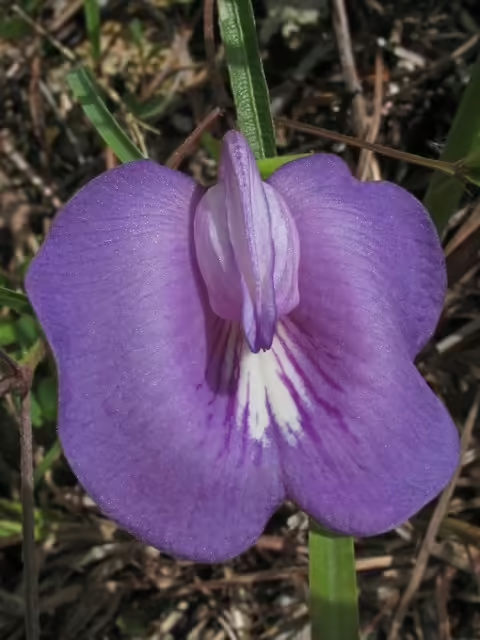
Spurred Butterfly Pea
Centrosema virginianum
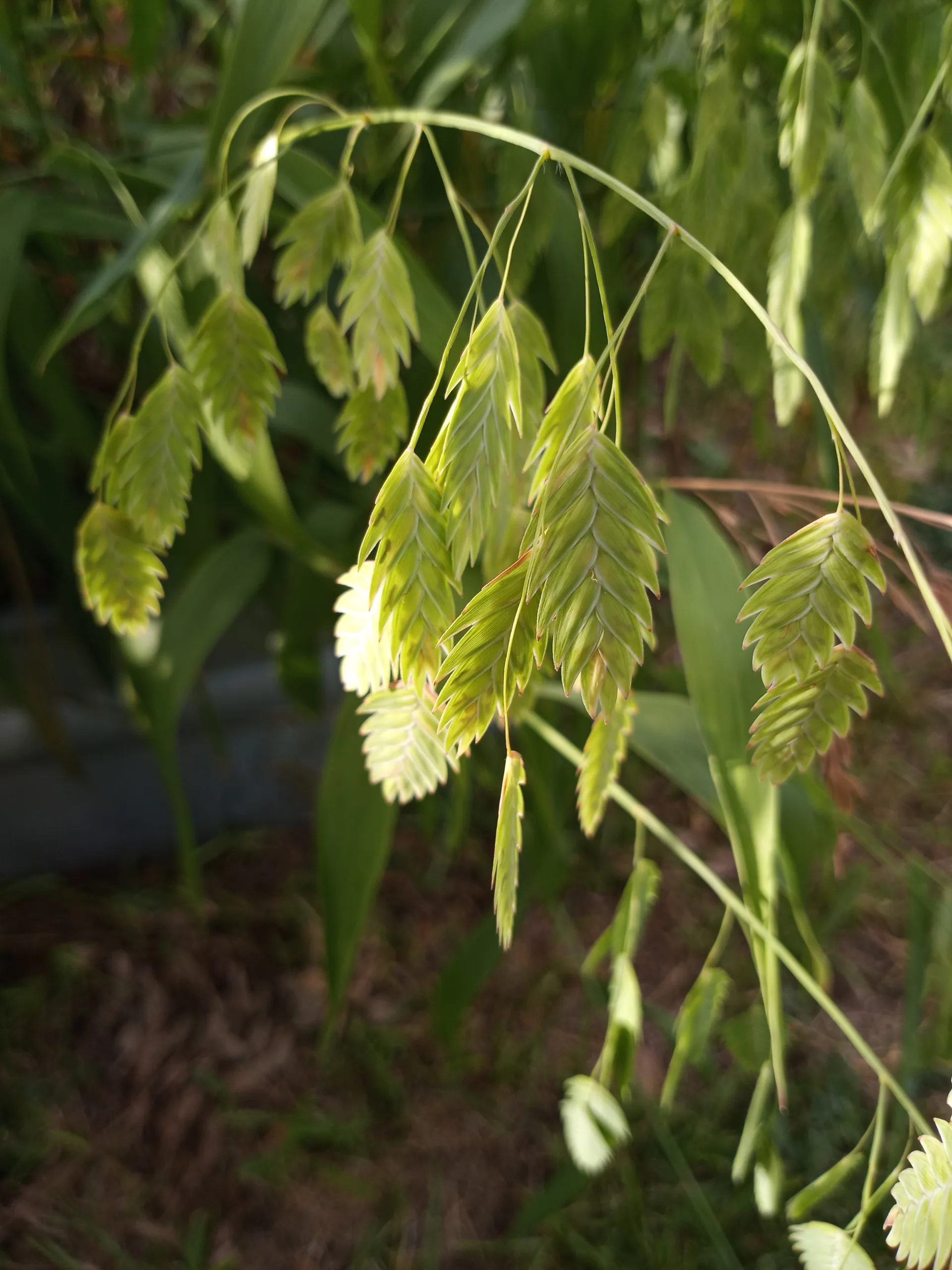
Inland Sea Oats
Chasmanthium latifolium
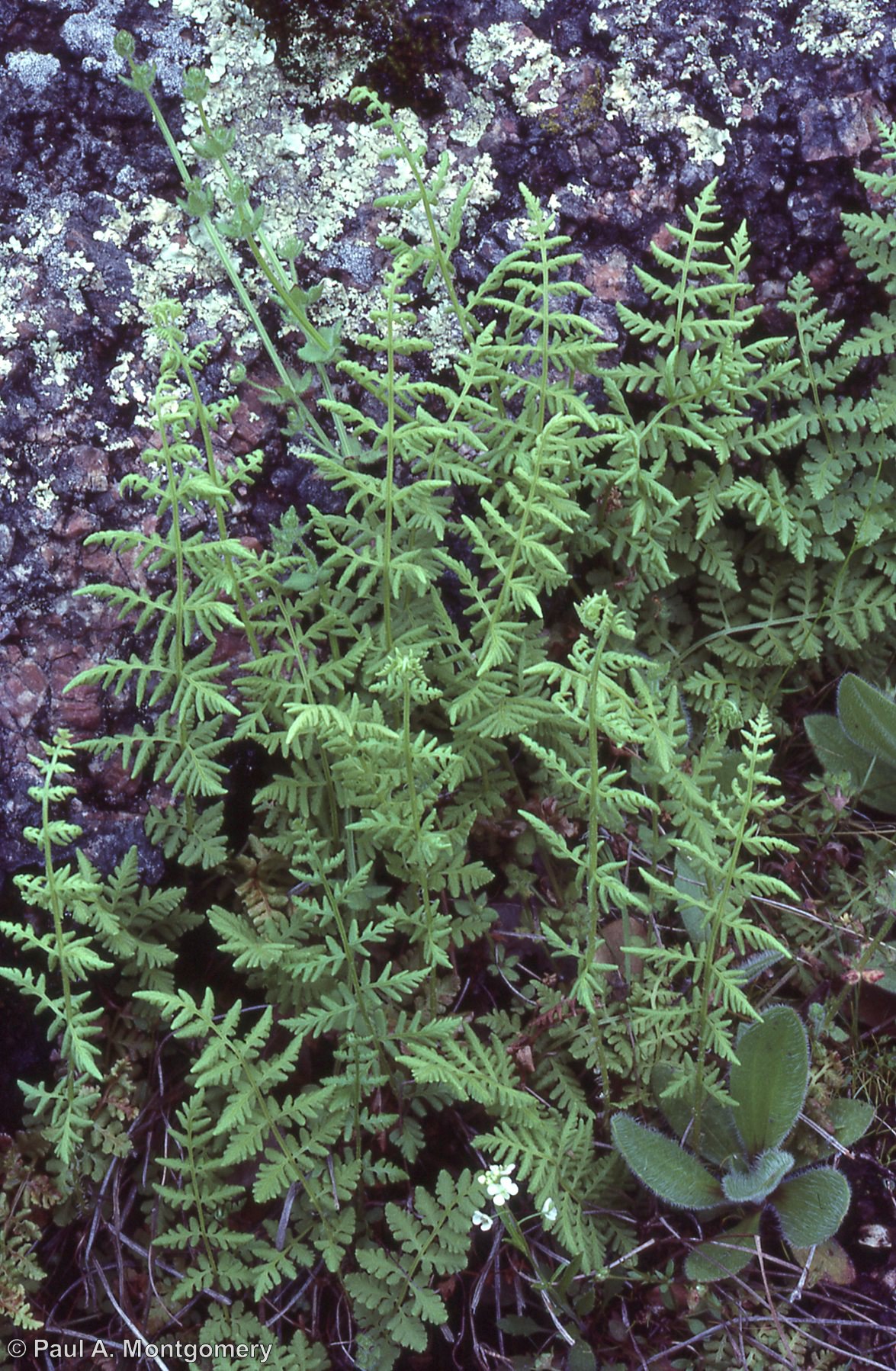
Alabama Lipfern
Cheilanthes alabamensis
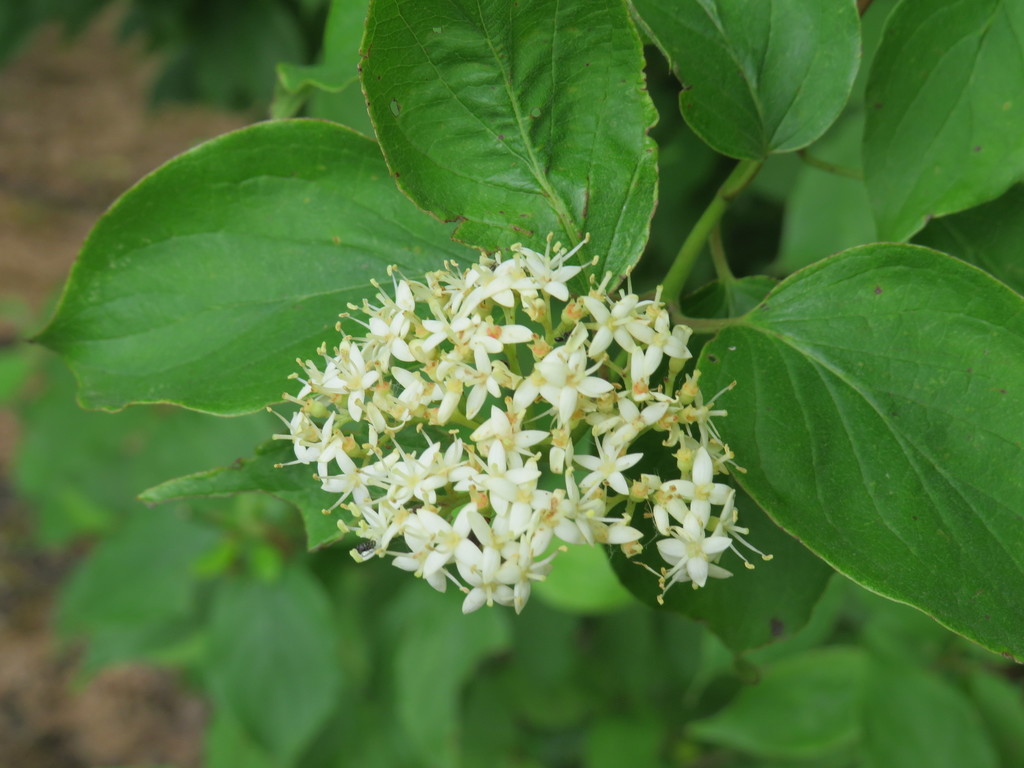
Roughleaf Dogwood
Cornus drummondii
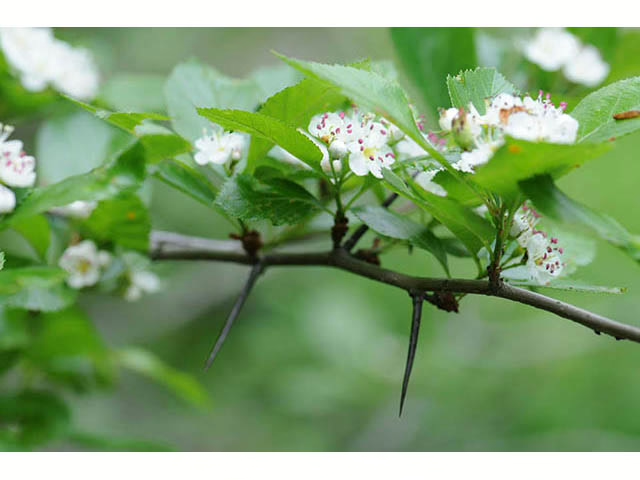
Cockspur Hawthorn
Crataegus crus-galli
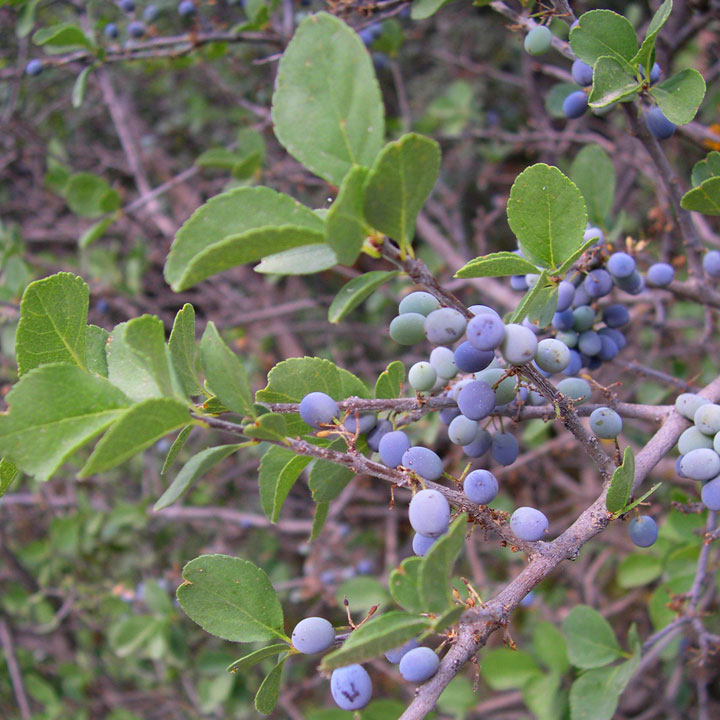
Elbowbush
Forestiera pubescens
Hairy Sunflower
Helianthus hirsutus
Balsam Gourd
Ibervillea lindheimeri
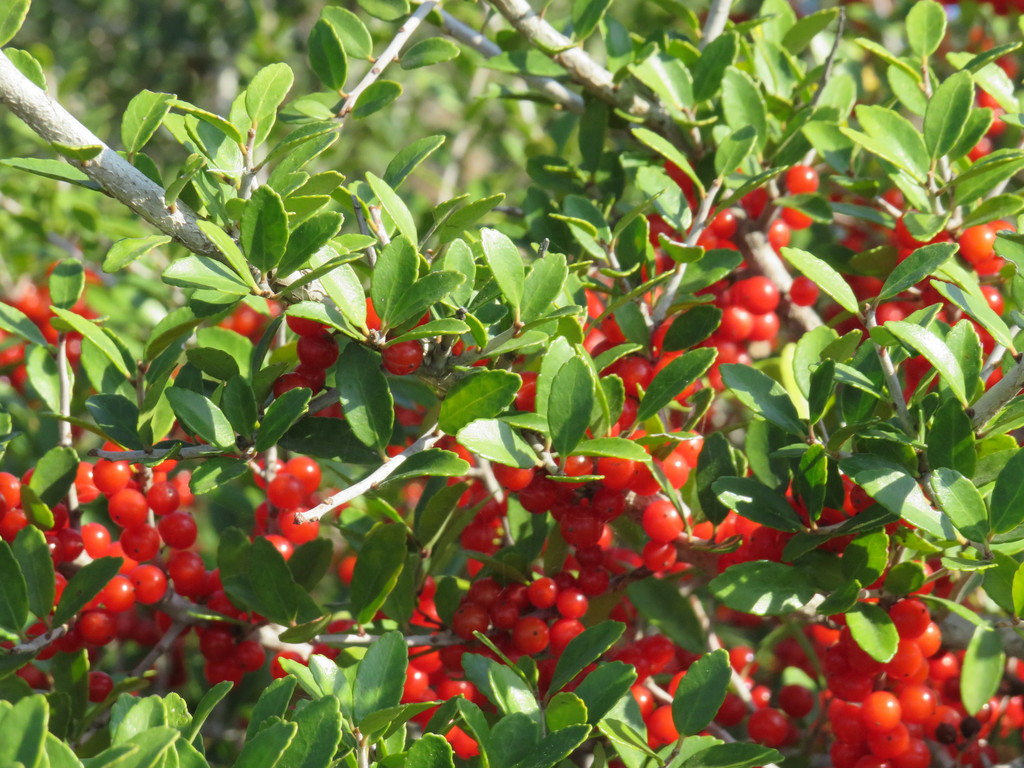
Yaupon Holly
Ilex vomitoria
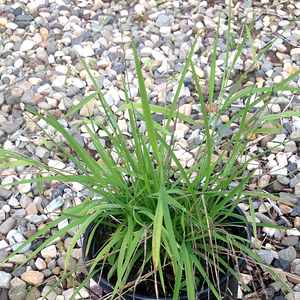
Cut Rice Grass
Leersia monandra
Yellow Prairie Flax
Linum berlandieri var. berlandieri
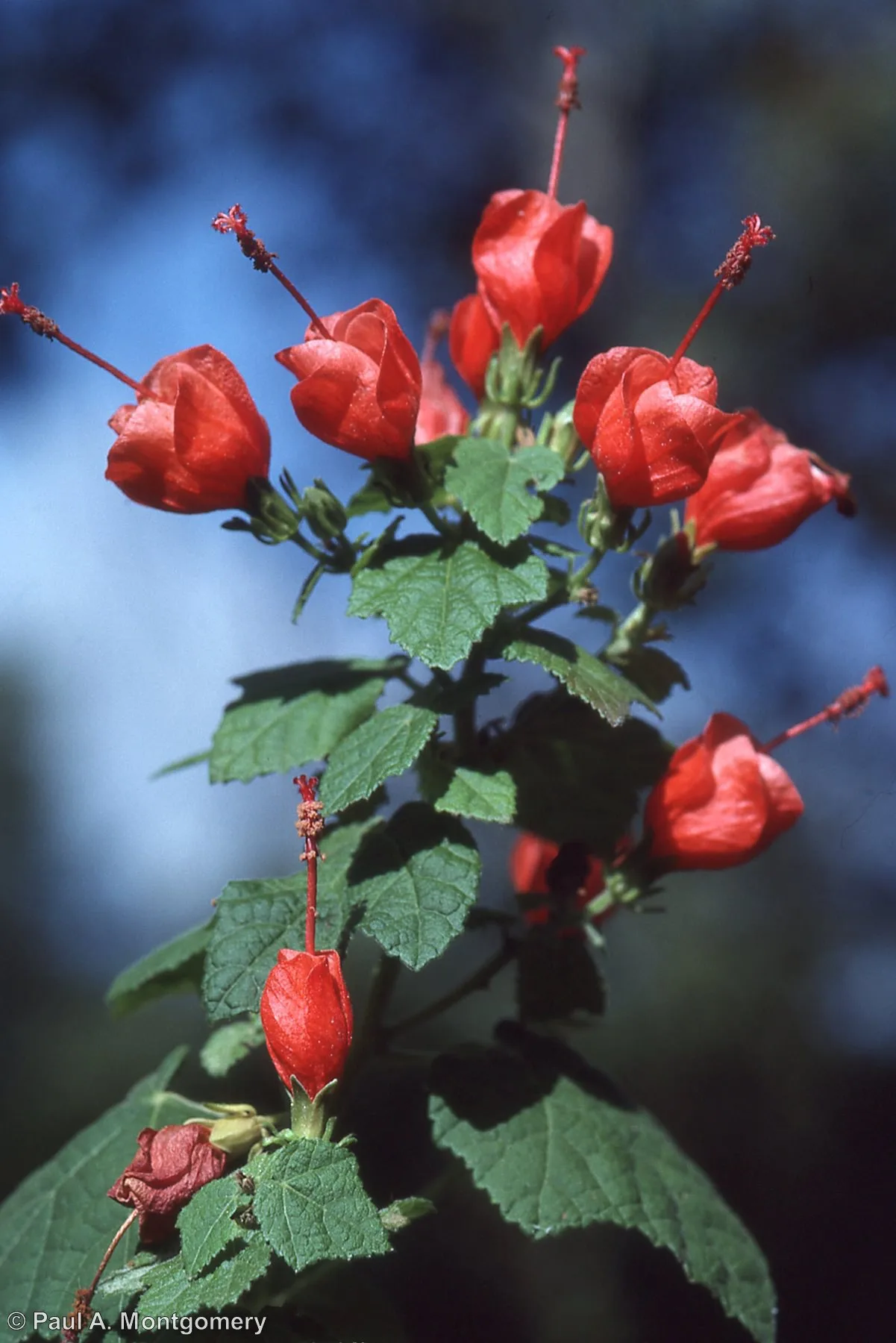
Turk's Cap
Malvaviscus arboreus
Pyramid Flower
Melochia pyramidata
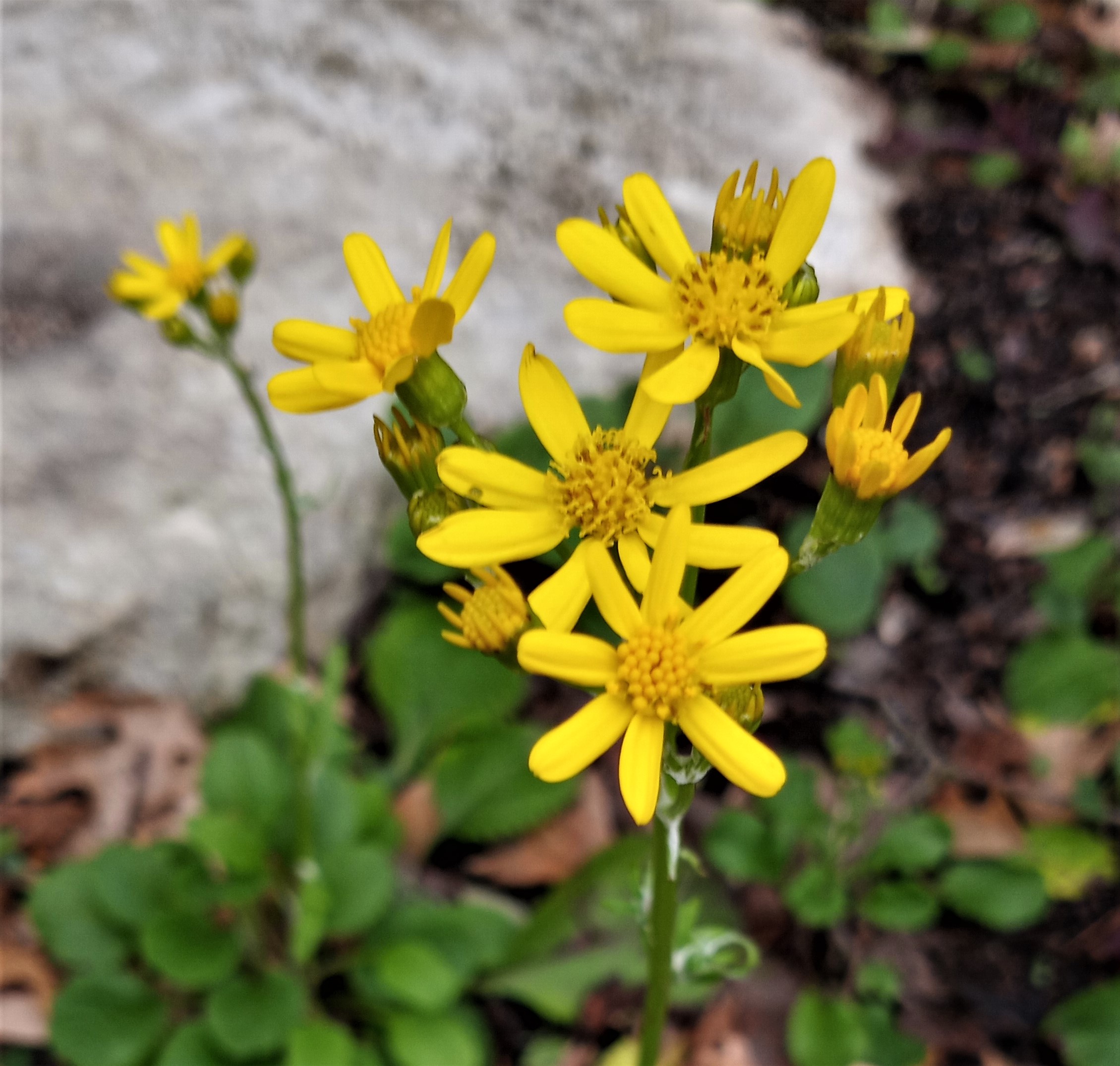
Golden Groundsel
Packera obovata
Seven-leaf Creeper
Parthenocissus heptaphylla
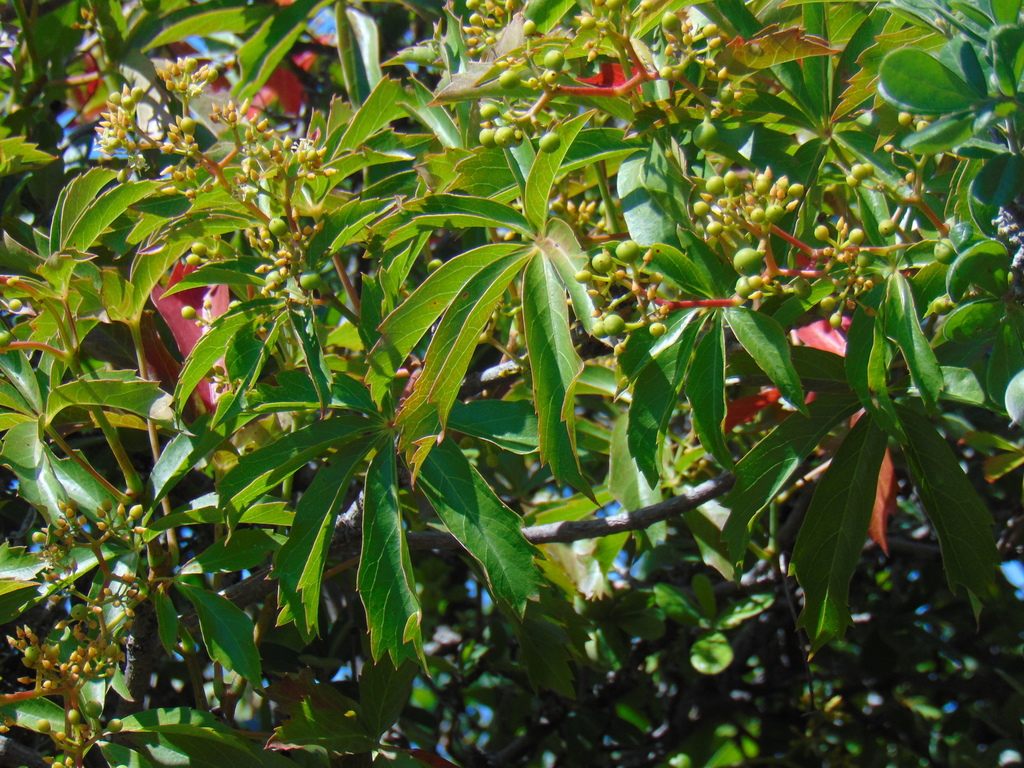
Virginia Creeper
Parthenocissus quinquefolia
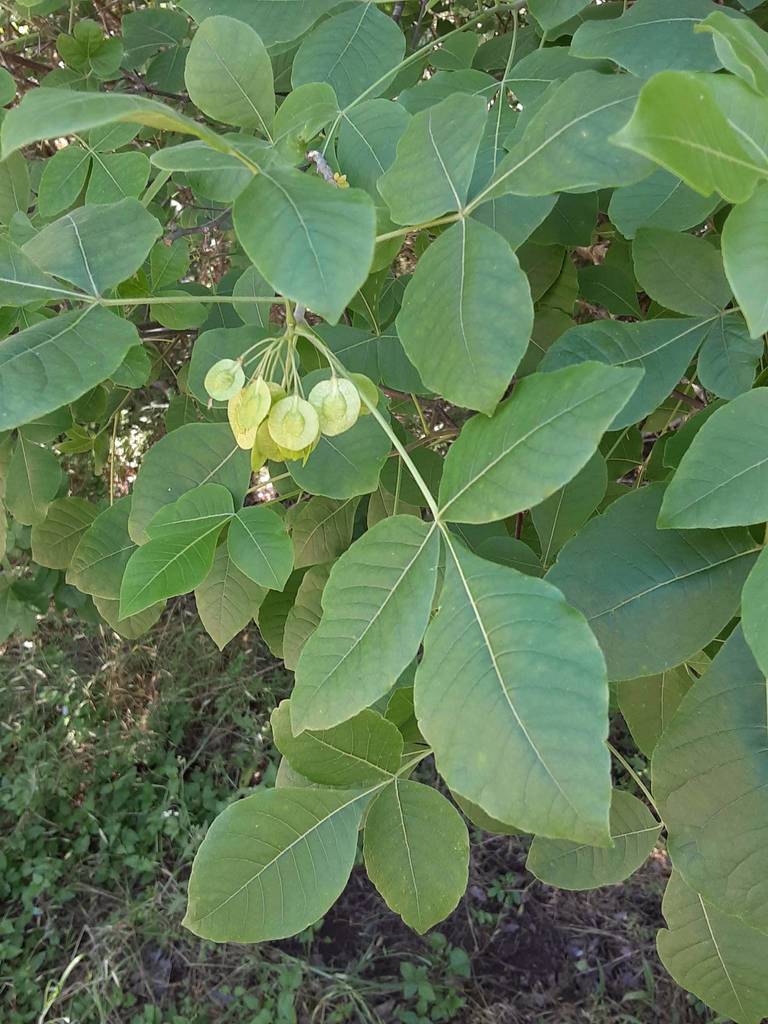
Wafer Ash
Ptelea trifoliata
Aromatic Sumac
Rhus aromatica
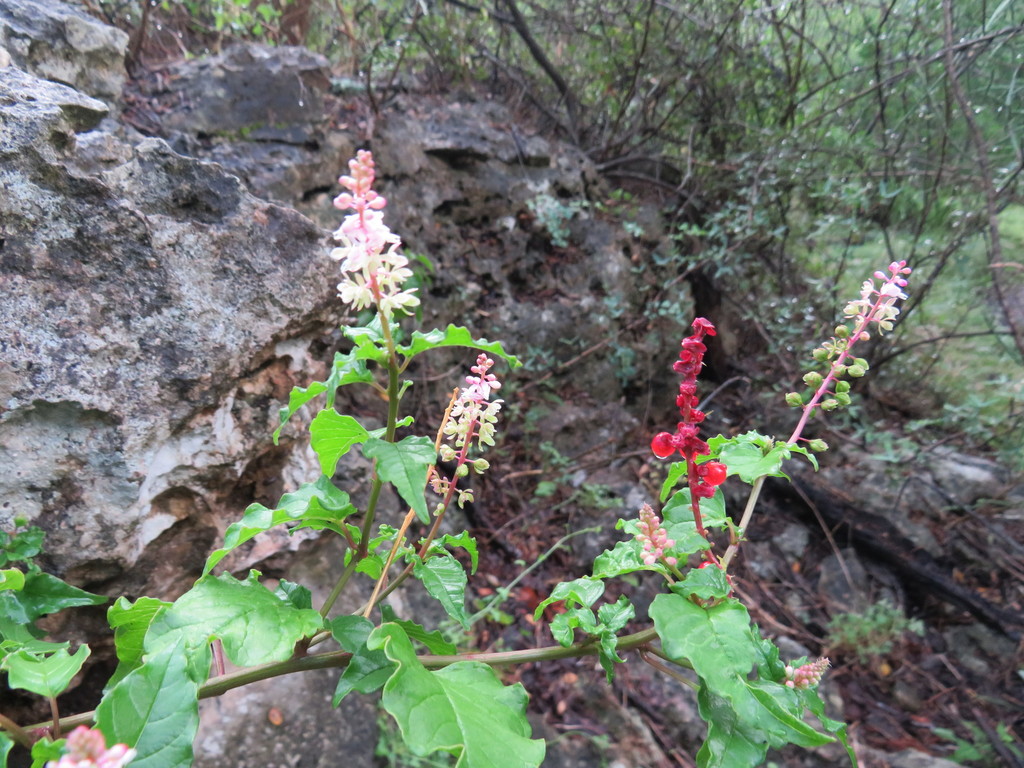
Pigeonberry
Rivina humilis
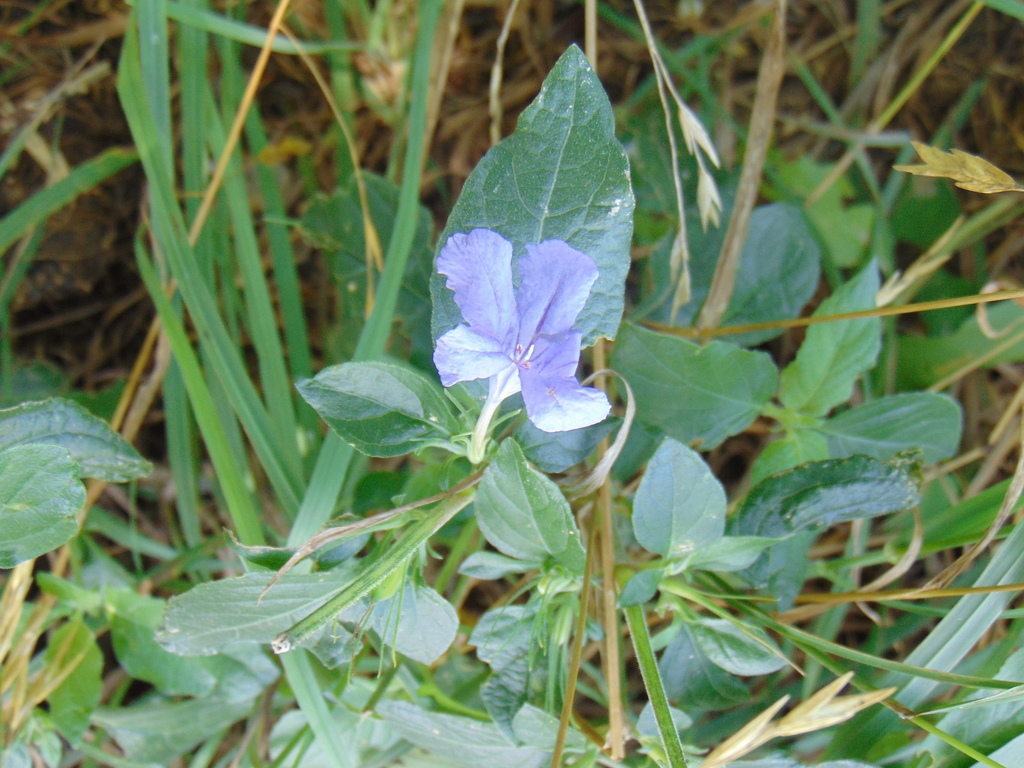
Drummond's Wild Petunia
Ruellia drummondiana
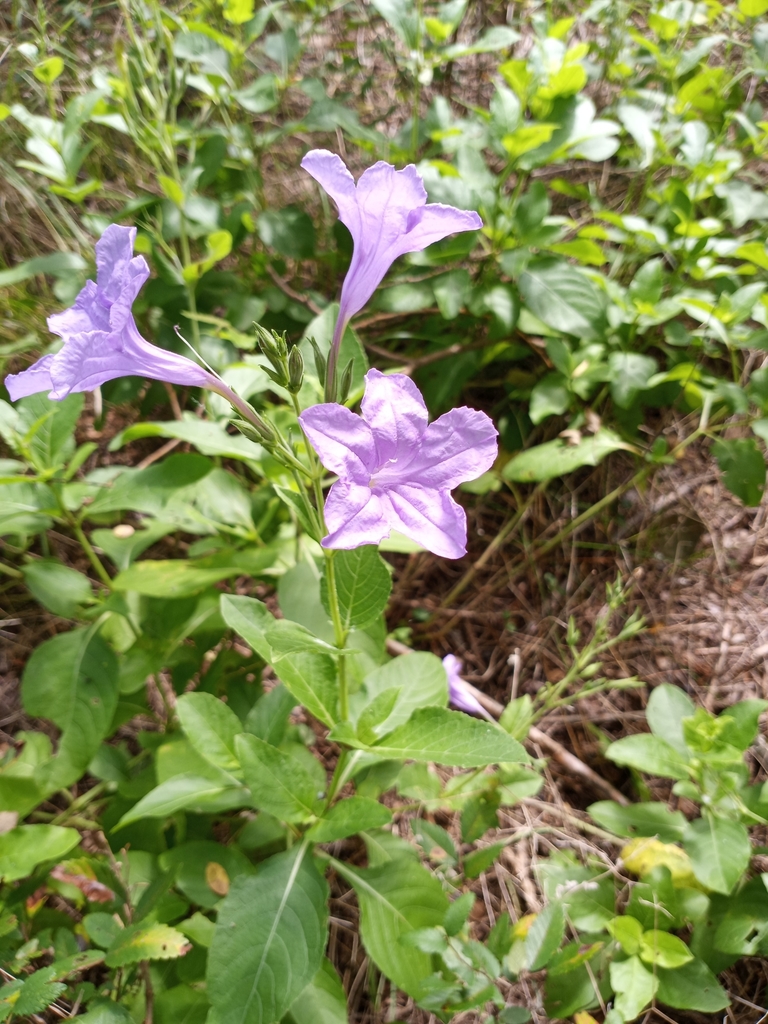
Wild Petunia
Ruellia nudiflora
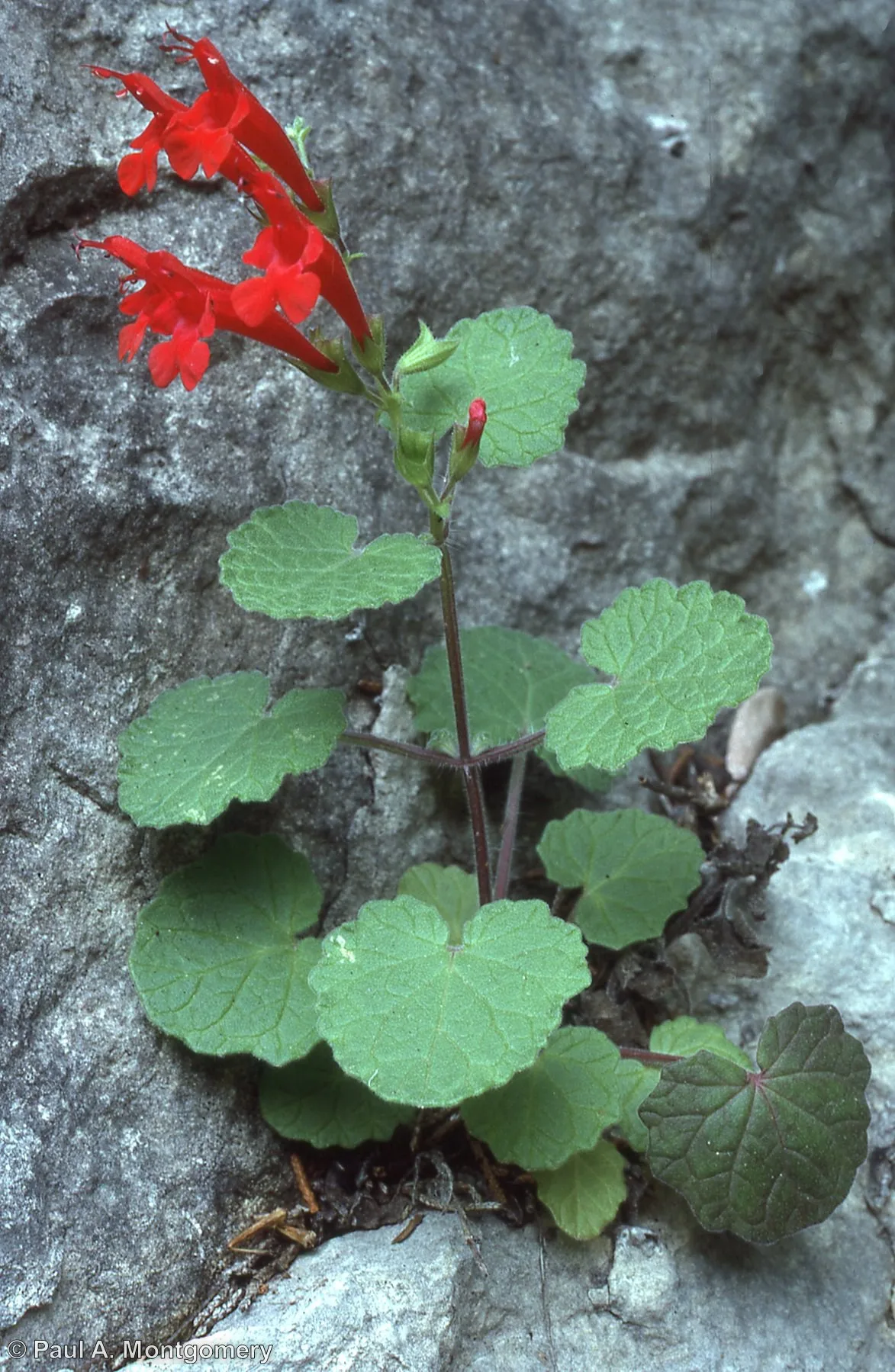
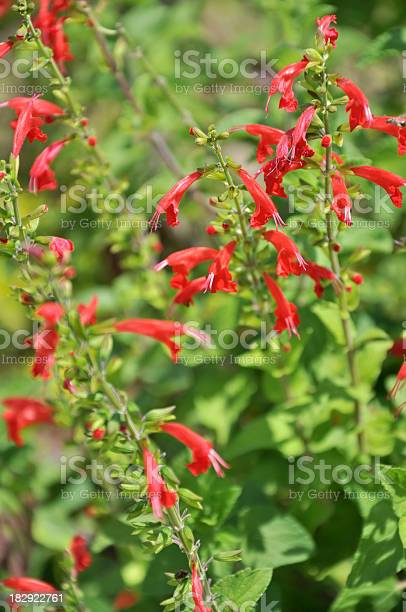
Scarlet Sage
Salvia coccinea
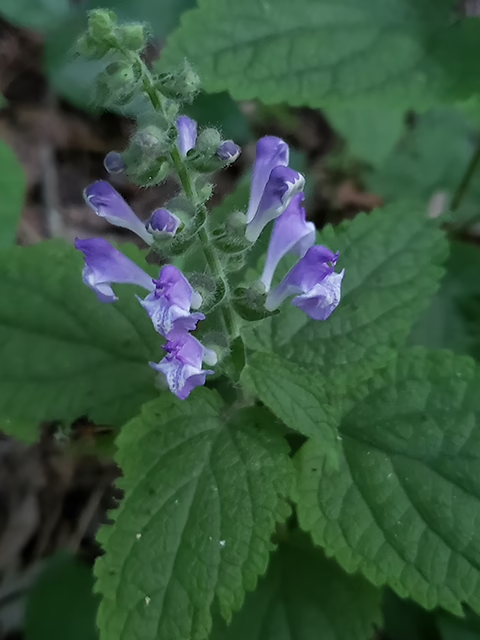
Heartleaf Skullcap
Scutellaria ovata
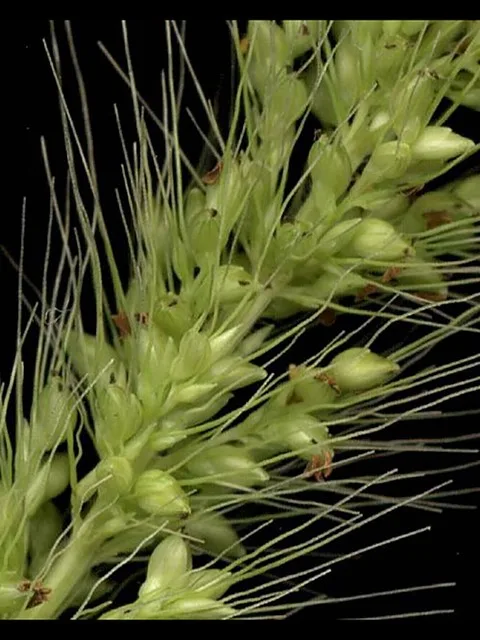
Southwestern Bristlegrass
Setaria scheelei
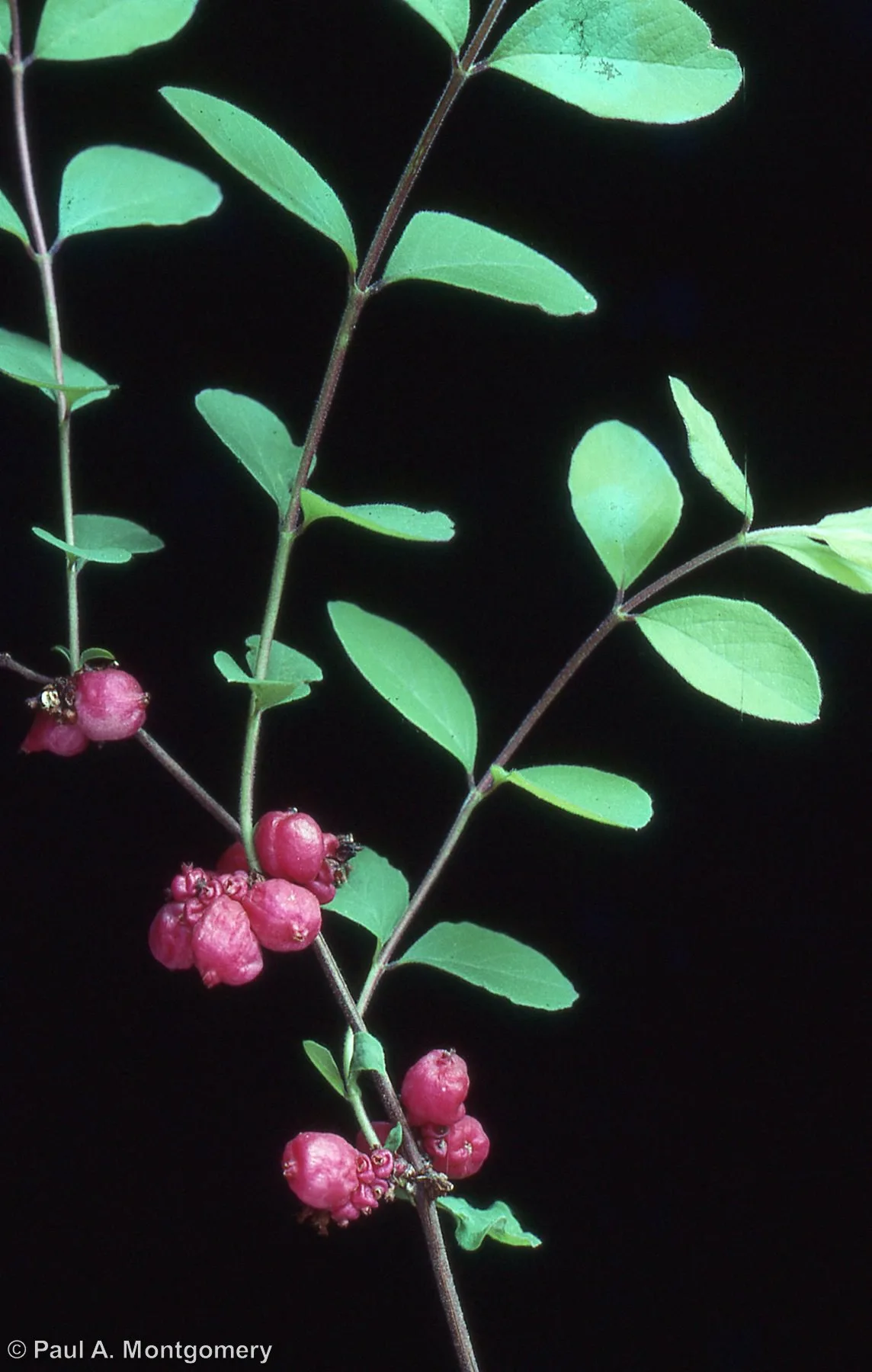
Coralberry
Symphoricarpos orbiculatus
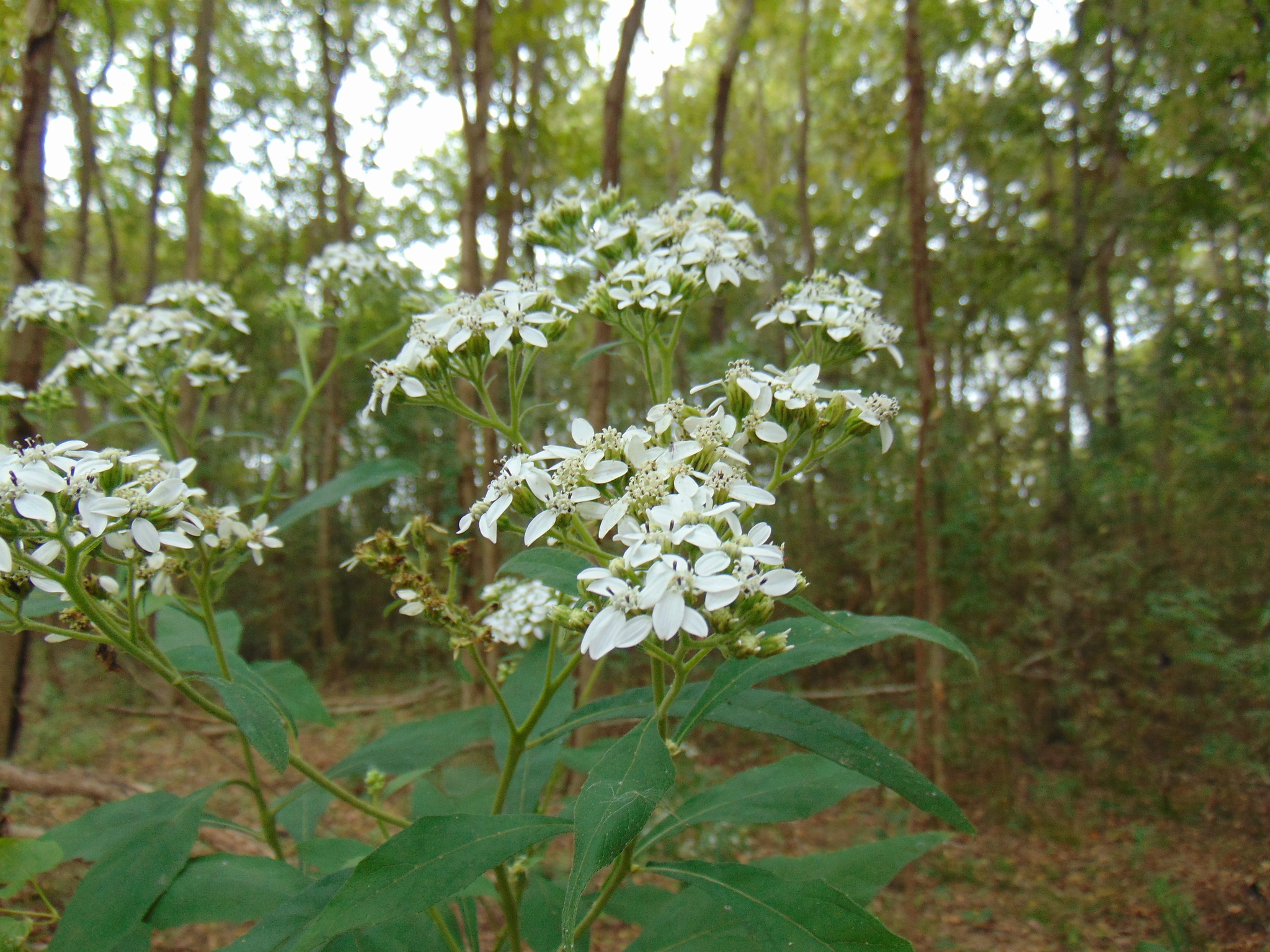
Frostweed
Verbesina virginica
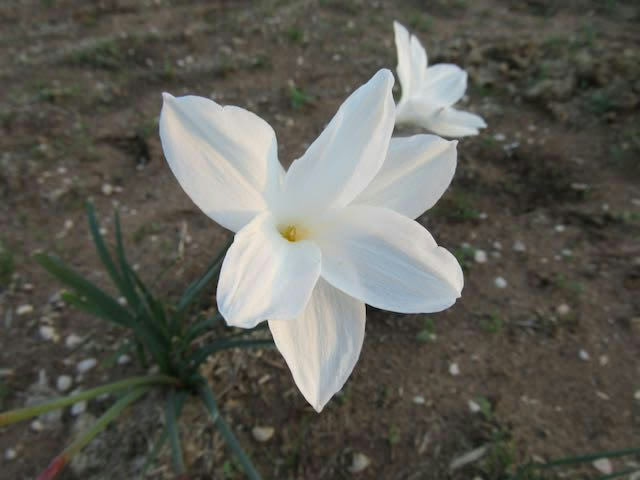
Prairie Lily
Zephyranthes drummondii
NPSOT Map
The NPSOT map is a flexible way to display chapters, ecoregions, chapter gardens, and other information on the website. To use the map on your page or post, follow these directions:
5) Now you can customize the map to fit your needs. The parameters passed into the NMap function in the HTML widget can be removed for items you don’t want to see. If you remove a “true” parameter, it will remove that option from being displayed on the map. “Zoom” and “center” can be adjusted to center the map on your desired location. NOTE: Only one map per page or post at this time. If you require more than one map on the page, let the Webmaster know.
Examples
Plant Sale
If you want to use the Native Plant Database to help build you a great looking list of plants for your plant sale, follow these steps.
Select plants from the database to show up in your plant sale.
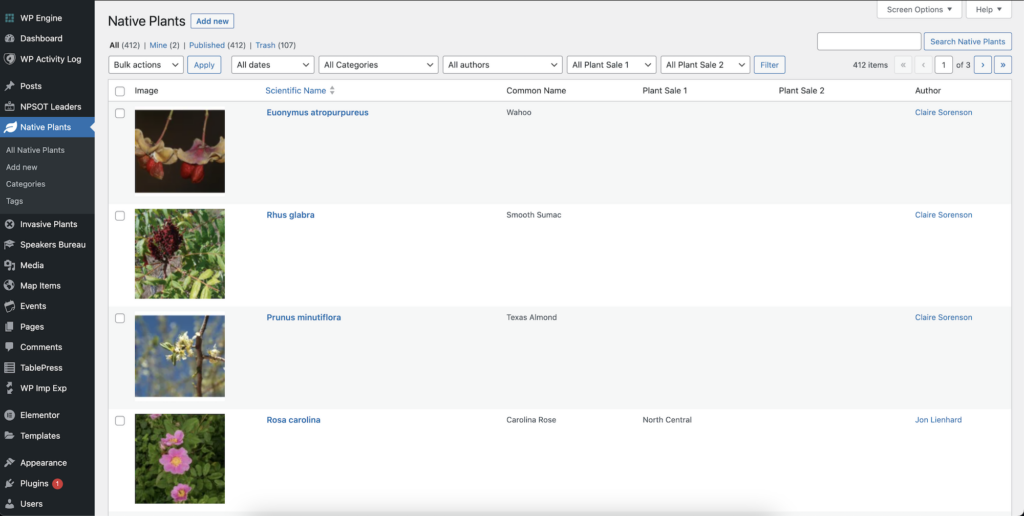
This will be the most time consuming part of the process. Hopefully your list of available plants doesn’t change much from year-to-year, so after the initial setup, managing changes will be easy. To begin, navigate to the administration area of the staging site, and select Native Plants on the left hand menu.
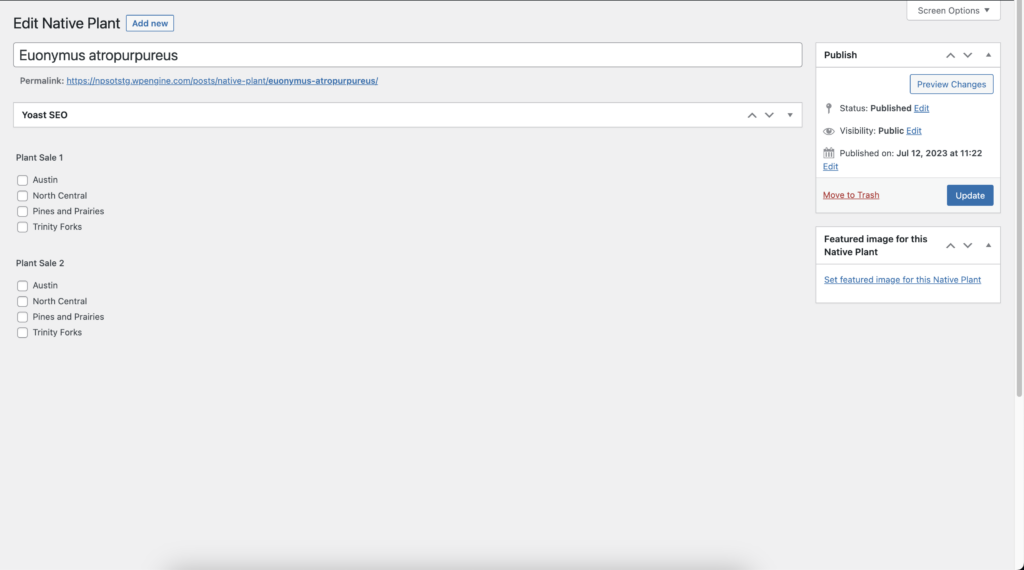
Click on the plant you would like to add to your plant sale. This will bring up the plant’s edit page. You can select either “plant sale 1” or “plant sale 2”. Some chapters use these for spring or fall sales. You can utilize the different choices however you like. If you only have one sale per year, there is no need to select both plant sale choices. Once you are done, hit “update” in the top right corner. Don’t see your organization? Contact the webmaster to be added.
If you want to see all the plants you’ve selected, use the plant sale filter at the top of the page.
Add the plant sale shortcode to your page
You have two options to display your plant sale information. Plants can be displayed as cards, categorized by their growth form, or as a table, alphabetized by common name. Feel free to use one, or both. Remember to enclose your shortcode in brackets [my-shortcode].
plant-sale-query //will display plant cards organized by growth form
plant-sale-query-table //will display plants in alphabetical order by scientific name
Add a new native plant to the database
Do you have a plant native to Texas that’s not already in the database? Adding new plants is easy utilizing our plant entry form. When you are on the staging site, and logged in, you should see a message at the top of the database landing page.
If you don’t see the link, navigate to www.npsot.org/resources/native-plants/native-plant-form/.
Please fill out the form as completely as possible. The Native Plant Committee would love to help you find a detail for a plant you would like to submit, but does not have the manpower to research every plant. You are encouraged to include as many pictures as you have on the form.
If you have notes for the Native Plant committee, please include them in the last input field on the form. This information will not be attached to your submission in the database, but will be emailed to the Native Plant Committee. This is best for questions you have for the submitted plant, or photo credits.
When you hit submit, the plant will not be immediately live. Please give the Native Plant committee a few days to review and publish your addition.
Plant Info Sheets
The Native Plant Database generates easy to use plant information sheets with QR codes, current as of dates, links to our website, and more. Be sure to print plant sheets from the production website (npsot.org) to ensure that QR codes and URLs are correct.
The exact instructions for this process will vary by operating system and browser. The best results for this process are currently on Google Chrome, so that is the recommended browser for this process. If you are having trouble, please contact the webmaster.
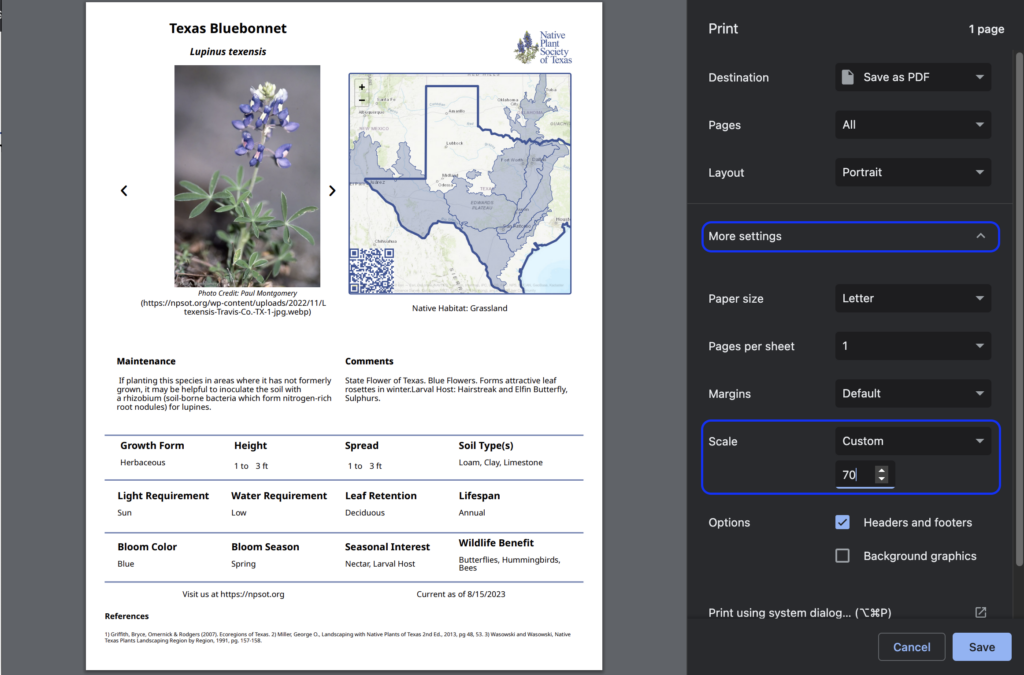
When you are on a plant page that you’d like to print as a plant sheet, hit ctrl+p or cmd+p, depending on your operating system. This will bring up the print preview window. Click “more settings” on the right hand side of the window, and change “scaling” to “custom”. Each plant may be slightly different due to varying content, but a good starting point is a scaling of “65.” At this point, you can fine tune the scaling to fit all the information without spilling onto another page. Your preview pane should look like the image below.
Notice that the website’s header and footer are gone. The NPSOT logo, current as of date, and URL for our site are added. The QR code that is added to the map will bring users to that plant’s page in the database. Print, and repeat the process for any other plant sheets you need.
Plant Database Excel Export
If you’d like to output the entire Native Plant Database, or a portion of it, as an Excel sheet, follow these directions.
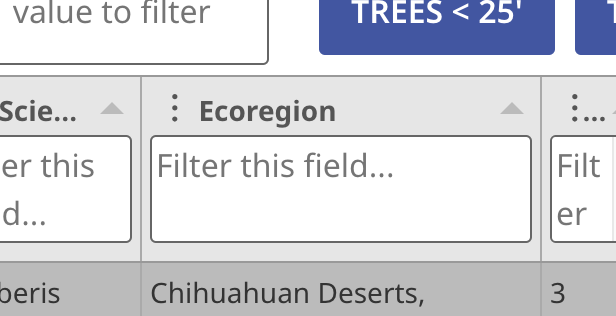
The table view of the native plant database is found here. At the top of the page are some blue “quick filters.” These filters are a one button push way to filter for common searches. If you’d like a quick filter built for your organization, contact the webmaster.
Each column heading has a filter box to narrow data based on that column’s data. For example, if you only want plants from a specific ecoregion, type it in the filter box in the ecoregion column. You can apply multiple column filters, and only plants that match all filters will be returned.
Columns can be resized by dragging the edge of the column. Columns can be rearranged by clicking and holding a column title, and moving it left or right. Columns can be hidden by clicking the three dots next to the column name, and unchecking the columns you would like to be hidden.
Once you have the plant data filtered for your specific need, scroll to the bottom of the page and click the “Download CSV” or “Download XLSX” button. You can always download the entire database by applying no filters before hitting the download button.
Your file can be opened in Excel or Google Docs once downloaded, to meet your needs.